Compiling OpenCV 4.6.0 on Windows 11, VS2022

Introduction

These are the steps I used to compile OpenCV V4.6.0 from the source code using Visual Studio 2022.

  • CMake is used to generate a custom Visual Studio solution
  • The latest CMake didn’t work (see below) so I used the previous version
  • My end-goal was a set of static libraries that could be used from a C++/CLI project

This workflow assumes that VS2022 is already installed, including at least the C++ workload:

CMake

Install CMake V3.24.3. This will be used to generate a custom Visual Studio 2022 solution which can then be used to build the OpenCV libraries.

Note: at the time of writing the latest version of CMake, V3.25.0, has an issue which makes it unusable for generating the OpenCV projects. Other people also talking about this on stackoverflow.

OpenCV source

Download the 4.6.0 source from OpenCV Releases:

Extract the files

Generate the VS2022 solution

Open CMake, select the Source folder, enter the build folder:

Click Configure and create the build directory if prompted:

The default settings

The configuration process should look like this:

And the main configuration area should look like this:

Next, make any configuration changes. For my environment:

  • BUILD_SHARED_LIBS: off
  • BUILD_opencv_world: off
  • BUILD_PERF_TESTS: off
  • BUILD_TESTS: off
  • BUILD_WITH_STATIC_CRT: off (important, because my C++/CLI project will use runtime CRT also)
  • BUILD_opencv_python_bindings_generator: off
  • BUILD_opencv_python_tests: off
  • OPENCV_IPP_GAUSSIAN_BLUR: on

Click Generate to make the VS2022 solution:

Open the solution in VS2022 by clicking Open Project:

Build OpenCV

Select the Debug|x64 configuration and build the solution. The end of the build should look similar to this:

========== Build: 42 succeeded, 0 failed, 0 up-to-date, 11 skipped ==========
========== Elapsed 04:28.202 ==========

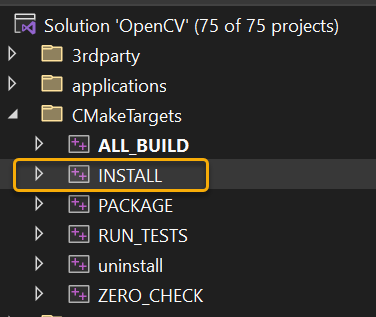
A second build procedure is required to generate the OpenCV distribution, required by any apps that want to use OpenCV. Expand the CMakeTargets folder in the solution explorer and build the INSTALL project.
This should produce output similar to:

========== Build: 1 succeeded, 0 failed, 56 up-to-date, 0 skipped ==========
========== Elapsed 00:06.970 ==========

In Windows Explorer you should now have a [new] Install folder:

  • \Downloads\opencv-4.6-build\install

This should include all the key headers and static library files required for building a C++/CLI or similar application or library.

Generate the release files by repeating the above procedure (using the Release|x64 configuration).

Final note

I’ve never, once, managed to just grab OpenCV source, configure and build, and then consume, without many hours of hacking about trying to figure why something doesn’t compile.

Using the OpenCV_World option can be worth a try if there are problems – this library (or DLL) contains most of the libraries packed into a single library.

Good luck 🙂

NU1201: xUnit project not compatible with .Net 5 WinForms project

I have a .Net 5 WinForms Control library (Windows 10, Visual Studio 2019) and want to add some unit tests for the non-UI classes. After adding an xUnit project and referencing my library I get this error:

error NU1201: Project WinFormsControlLibrary1 is not compatible with net5.0 (.NETCoreApp,Version=v5.0). Project WinFormsControlLibrary1 supports: net5.0-windows7.0 (.NETCoreApp,Version=v5.0)

This happens because the WinForms library targets .Net 5 Windows, which is more specific than general .Net 5.

I fix this by double-clicking the unit test project (in solution explorer) and editing the target framework from:

<TargetFramework>net5.0</TargetFramework>

To:

<TargetFramework>net5.0-windows</TargetFramework>

Then, close my project and Visual Studio, and re-open it. (This gives VS2019 a chance to figure what’s going on!) Now the project compiles and I can create and run unit tests.


Note: The Target Framework, shown in the project properties page, is now blank:

So I select .Net 5, close the page, and look again at the project JSON file – now the target framework has changed to:

<TargetFramework>net5.0-windows7.0</TargetFramework>

What’s the difference? I think, nothing! Although at some point I’m sure this will change. More information here: https://github.com/dotnet/sdk/issues/14553

.Net 5 RC2, WinForms, NETSDK1136, NETSDK1137

After installing .Net 5 rc2 I tried making a WinForms project using Visual Studio Preview. It looked like it worked straight away but the default target framework was .Net Core 3.1:

After changing from 3.1 to 5 I then got a compilation error:

error NETSDK1136: The target platform must be set to Windows (usually by including '-windows' in the TargetFramework property) when using Windows Forms or WPF, or referencing projects or packages that do so.

To fix this I unloaded and then edited the project file (within Studio):

<Project Sdk="Microsoft.NET.Sdk.WindowsDesktop">
  <PropertyGroup>
    <OutputType>WinExe</OutputType>
    <TargetFramework>net5.0-windows</TargetFramework>
    <UseWindowsForms>true</UseWindowsForms>
  </PropertyGroup>
</Project>

This changed fixed the target platform problem. The compiler then displayed a warning/comment saying that the project SDK could be updated:

NETSDK1137: It is no longer necessary to use the Microsoft.NET.Sdk.WindowsDesktop SDK. Consider changing the Sdk attribute of the root Project element to 'Microsoft.NET.Sdk'

So I edited the project file again and changed to:

<Project Sdk="Microsoft.NET.Sdk">
  <PropertyGroup>
    <OutputType>WinExe</OutputType>
    <TargetFramework>net5.0-windows</TargetFramework>
    <UseWindowsForms>true</UseWindowsForms>
  </PropertyGroup>
</Project>

With these two mods I now had an error and warning free .Net 5 RC2 WinForms project – my first ever!

Walkthrough:

C# scripting!

After much struggle, learning and googling, I’ve finally made my own small library that provides a simple C# code editor and a bunch of simple C# scripting utilities.

A few years ago I wrote a simple Scintilla.net-based code editor and, with the Microsoft CSharp scripting library, managed to let my apps provide code editing and run-time C# script execution. The code was scrappy and without intellisense also difficult to use for non-trivial scripts.

Then I found the RoslynPad project, which uses AvalonEdit for the underlying text editor to provide a WPF C# scripting editor. As well as a stand-alone application the text editor is also available via NuGet. Since I work almost entirely with WinForms, rather than WPF, I wanted an easy-to-use drag-and-drop widget to provide code editing. So I wrote CDS.CSharpScripting.

As well as the code editor there are classes for script compilation and execution, including EasyScript, a class that allows for one-line compilation and execution. The compiler utilities provide access to the compilation results such as errors and warning.

Example 1:

EasyScript<object>.Go("Console.WriteLine(\"Hello world, from the script!\");");

Output:

Hello world, from the script!

There’s still lots to do on the project including mode demos, getting code actions to work – they actual actions do already work but the menu text is broken.

If you need something with more power than my simple code editor wrapper then the RoslynPad project is available on GitHub. There are also countless demos showing how to use Microsoft’s C# scripting classes directly. But if you just need a quick code editor and the ability to compile and run code at runtime, capture script return values and share data between the host app and the script, then this is not a bad place to start.

Happy scripting.

🙂

VS2019 C# project always builds

Some of my projects always build, whereas others just say they’re already up-to-date.

I’ve finally got something that’s actually helping me isolate the problems, and it’s related to bringing in packages via NuGet that bring in lots of other dependencies.

The first step is to change the MSBuild output from Minimal to Diagnostics:

Run the build once just in case anything really has changed.

Build the project and look at the top of the diagnostics in the output window. As an example, I have this

1>Project 'AmberOptix.AOX3.Scripting' is not up to date. CopyLocal reference 'C:\dev\Projects\Amber\AOX3\AmberOptix.AOX3.Scripting\bin\Debug\System.Diagnostics.StackTrace.dll' is missing from output location.

Next I remove this assembly (System.Diagnostics.StackTrace.dll) from my packages.config file and the references. Then I build again and repeat the process until it eventually says that everything is up-to-date.

For some of the ‘missing’ assemblies I can guess that several others may also not be required. For example I deleted 3 System.Net.XXX packages and references when System.Net.Http was reported as missing.

As a guideline I had to remove over 20 packages and references from my scripting library to get this working.

An alternative to this manual approach of deleting one at a time is to delete all packages and references, then go through a cycle of adding back NuGet packages and normal assembly references as required.

I’m still sure there must be a better and safer way to do this! I think JetBrains’ ReSharper has tools but haven’t had a chance to trial yet.

Windows 10 Search Broken!

‘Type here to search’ suddenly stopped this morning on all of my virtual machines. Presumed this was a Parallels problem, however it’s related to Bing and lots of people have this problem…


The howtogeek page: https://www.howtogeek.com/224159/how-to-disable-bing-in-the-windows-10-start-menu/

My video…

Python string formatting: f-strings to the rescue

Just discovered f-strings for Python string interpolation – much, much better than any of the other formatting techniques such as .format or %.

Example:

print(f'{name} is {age} years old')
Jon is 21 years old

I’ve written a load of examples and notes in an interactive Jupiter notebook, mainly for my own reference:

https://gitlab.com/cds/pythonlearning/blob/master/fstring.ipynb

macOS, Visual Studio Code, Python 3.7.5, OpenCV4

It took a few attempts to get a compatible Python and OpenCV library running under Visual Studio Code on macOS Catalina using a virtual environment. I made a video to show how I got this going – this post just adds some more details.

There is also an excellent tutorial from Microsoft:

Getting Started with Python in VS Code

Note: virtual machine rendering problem

Visual Studio Code running on a virtual machine may have problems rendering the interface. This seems to be related to the underlying Electron framework and GPU acceleration. I made a quick video to show how I got around this:

Fix rendering problems for Visual Studio Code running on a virtual machine

Install Python 3.7.5

A virgin Mac comes with Python 2.7 installed – this is not recommended and V3.7.5 works with OpenCV4 on a Mac. V3.8 does not work at the time of writing (although since I started writing this post it looks like it now does). Download the installer from the main python website by selecting Downloads, Mac OS X, and then selecting the 64-bit installer:

Run the installer – I used all default settings.

Install Visual Studio Code

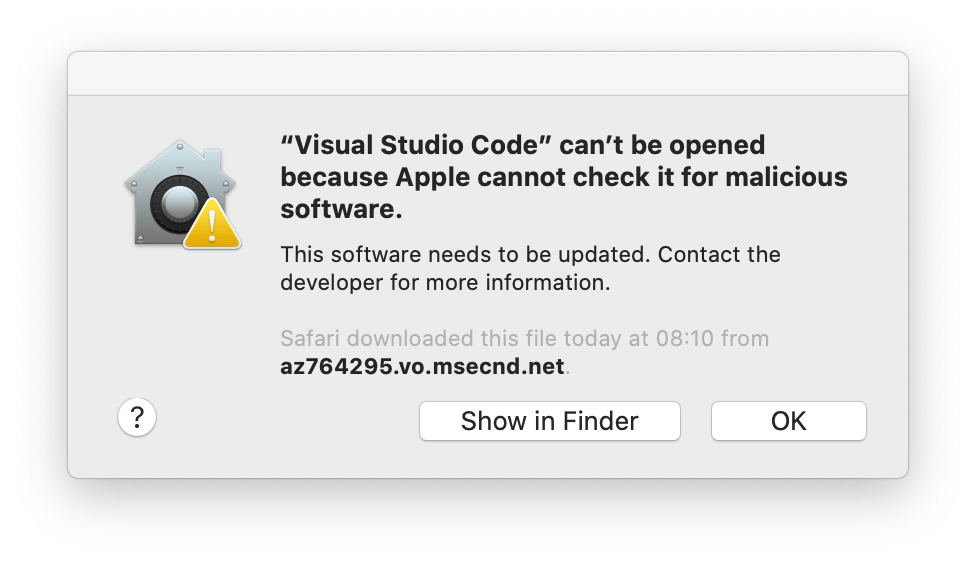
Download the installer from Visual Studio Code and immediately move the downloaded file to the Applications folder. (This is the actual application, not an installer). Try to run once – macOS will refuse due to security:

Close the message, open System Preferences, and select the Security and Privacy settings. Then select “Open Anyway” to allow VSC.

Visual Studio Code should now start:

Configure Python

Open a folder by selecting Open folder and then add a new file. Save the file using the .py extension:

Visual Studio Code immediately offers to install the Python extension, select Install:

On a virgin Mac there will now be a prompt to install command line developer tools, so click Install if prompted and allow the installation to complete before returning to Visual Studio Code.

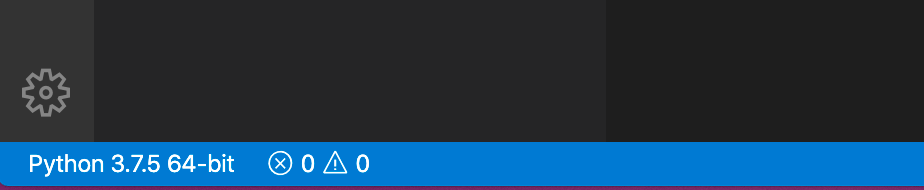
The status bar will show the selected interpret if everything has gone well:

Install the linter (pylint): this helps analyse the code for bugs and style issues. It also might not work first time but we can fix shortly…

If the terminal window suggests upgrading pip, the Python package manager, then go for it by running the following in the terminal window:

python3 -m pip install --upgrade pip

Make a virtual environment

A virtual environment is a self-contained directory tree that contains a Python installation for a particular version of Python

https://docs.python.org/3/tutorial/venv.html

Each project can use its own virtual environment to ensure any modules it requires don’t clash with modules in other projects.

From the terminal create a virtual environment:

python3 -m venv .venv

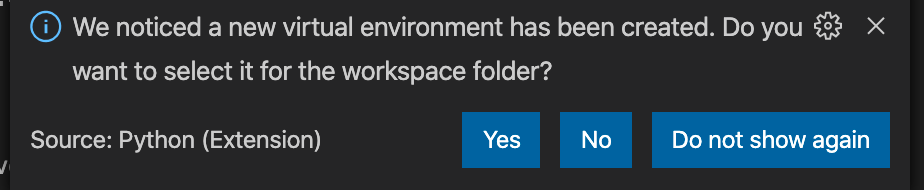
Visual Studio Code will detect this new environment and offer to select it for the current project folder – select Yes:

Because this is a new Python environment you may need to install the linter again:

Now – the bit that confused me… the project is now using the .venv virtual environment:

However, the terminal session has so far only created the environment, it has not activated it for itself. The shell identifier says:

jon@Jons-MacBook-Pro Python %

There are two ways to fix this. First, using the source command in the terminal window:

source .venv/bin/activate

Second, by creating a new Terminal session using the command palette. (Select View, ten Command Palette):

Now the terminal shows that it’s using the virtual environment:

Install OpenCV

At last we can install OpenCV. Using the terminal session in the virtual environment we can first search for OpenCV packages:

python3 -m pip search opencv  

When called with -m module-name, the given module is located on the Python module path and executed as a script

https://docs.python.org/3/using/cmdline.html

We see results like this:

opencv-utils (0.0.2) – OpenCV Utilities
ctypes-opencv (0.8.0) – ctypes-opencv – A Python wrapper for OpenCV using ctypes
opencv-wrapper (0.2.3) – A Python wrapper for OpenCV.
opencv-cython (0.4) – An alternative OpenCV wrapper
dajngo-opencv (0.3) – Django Opencv integratio
opencv-python (4.1.2.30) – Wrapper package for OpenCV python bindings

For this test I’m using opencv-python. The details on version 4.1.2.30 can be found on the Python Package Index site. Interestingly this version was only released a few hours ago and says it supports Python 3.8 😬 I guess I’ll try this on a virtual machine first to check it’s all ok!

Install OpenCV using pip:

python3 -m pip install opencv-python

Write some code and fix the linter

First test: import the OpenCV module and print the library version.

import cv2
print('Using OpenCV version {0}'.format(cv2.__version__))

After running this output is shown in the terminal:

But – there’s a problem. In the editor the linter is suggesting that cv2 is not a known module:

This has been seen before on the pylint GitHub issues page. For me, the solution is to edit the .vscode settings. Using ⇧⌘E (shift+command+E) to view the explorer page, expand the .vscode file and click settings.json:

Add a comma to the end of the line of the existing setting, then add the following new setting:

"python.linting.pylintArgs": ["--generate-members"]

My settings now look like this:

And now the red squiggle has gone from cv2.__version__ 😀

All that remains is to learn Python and OpenCV which will surely lead to great things!

Hope this helps.

3 useful keyboard mods for better editor support on Windows 10 using Parallels

Tested with Parallels Desktop 15 Pro Edition on macOS Catalina.

Problem 1: using Visual Studio or notepad++ or any similar multi-document application in Windows 10 on a Mac using Parallels, ⌘W (Command+W) maps to Alt+F4. This means To close just an editor page you have to revert to the original Windows shortcut of Control+F4 which is a minor pain on a Mac with the Touch Bar instead of function keys.

Solution 1: change the Parallels preferences to remap ⌘W to Ctrl+F4. ⌘Q will still close an application but ⌘W will now close an internal editor window; this is the same behaviour used in Safari to close the whole application (⌘Q) or close just one page (⌘W).

Problem 2: Control+Tab and Shift+Control+Tab don’t switch between editor windows.

Solution 2: a recent update to Parallels resulted in these shortcuts being used for Parallels tab switching. They don’t get passed on to the VM. Just unchecking these shortcuts fixes the problem.