Compiling OpenCV 4.6.0 on Windows 11, VS2022

Introduction

These are the steps I used to compile OpenCV V4.6.0 from the source code using Visual Studio 2022.

  • CMake is used to generate a custom Visual Studio solution
  • The latest CMake didn’t work (see below) so I used the previous version
  • My end-goal was a set of static libraries that could be used from a C++/CLI project

This workflow assumes that VS2022 is already installed, including at least the C++ workload:

CMake

Install CMake V3.24.3. This will be used to generate a custom Visual Studio 2022 solution which can then be used to build the OpenCV libraries.

Note: at the time of writing the latest version of CMake, V3.25.0, has an issue which makes it unusable for generating the OpenCV projects. Other people also talking about this on stackoverflow.

OpenCV source

Download the 4.6.0 source from OpenCV Releases:

Extract the files

Generate the VS2022 solution

Open CMake, select the Source folder, enter the build folder:

Click Configure and create the build directory if prompted:

The default settings

The configuration process should look like this:

And the main configuration area should look like this:

Next, make any configuration changes. For my environment:

  • BUILD_SHARED_LIBS: off
  • BUILD_opencv_world: off
  • BUILD_PERF_TESTS: off
  • BUILD_TESTS: off
  • BUILD_WITH_STATIC_CRT: off (important, because my C++/CLI project will use runtime CRT also)
  • BUILD_opencv_python_bindings_generator: off
  • BUILD_opencv_python_tests: off
  • OPENCV_IPP_GAUSSIAN_BLUR: on

Click Generate to make the VS2022 solution:

Open the solution in VS2022 by clicking Open Project:

Build OpenCV

Select the Debug|x64 configuration and build the solution. The end of the build should look similar to this:

========== Build: 42 succeeded, 0 failed, 0 up-to-date, 11 skipped ==========
========== Elapsed 04:28.202 ==========

A second build procedure is required to generate the OpenCV distribution, required by any apps that want to use OpenCV. Expand the CMakeTargets folder in the solution explorer and build the INSTALL project.
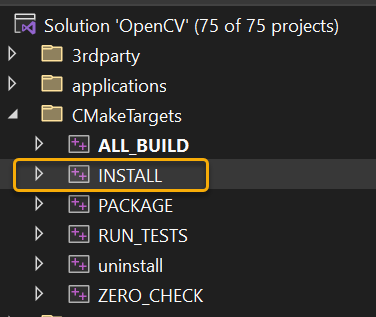
This should produce output similar to:

========== Build: 1 succeeded, 0 failed, 56 up-to-date, 0 skipped ==========
========== Elapsed 00:06.970 ==========

In Windows Explorer you should now have a [new] Install folder:

  • \Downloads\opencv-4.6-build\install

This should include all the key headers and static library files required for building a C++/CLI or similar application or library.

Generate the release files by repeating the above procedure (using the Release|x64 configuration).

Final note

I’ve never, once, managed to just grab OpenCV source, configure and build, and then consume, without many hours of hacking about trying to figure why something doesn’t compile.

Using the OpenCV_World option can be worth a try if there are problems – this library (or DLL) contains most of the libraries packed into a single library.

Good luck 🙂

VS2017 and NuGet for C++/CLI

At the time of writing it still isn’t possible to use the NuGet package manager for C++/CLI projects. My workaround is to:

  1. Add a new C# class library project to the solution.
  2. Add any NuGet packages to this new project.
  3. Configure the C# project so it always builds in Release configuration.
  4. Use the Build Dependencies dialog to ensure that the new C# project is built before the C++/CLI project.
  5. Add to the C++/CLI project a reference to the NuGet packages by using the output folder of the C# project.

Example

Create a new solution with a C++/CLI class library…

Add a C# class library (.Net Framework), delete Class1.cs, then go to the solution’s NuGet package manager:

2018-09-05 12_19_13-.png

Install the Newtonsoft.Json package for the C# project:2018-09-05 12_29_01-Solution3 - Microsoft Visual Studio.png

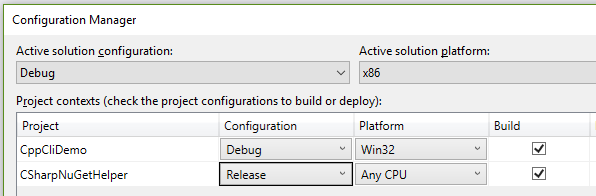
Change the C# build configuration so that the Release configuration builds for both Debug and Release:2018-09-05 12_31_24-Configuration Manager.png

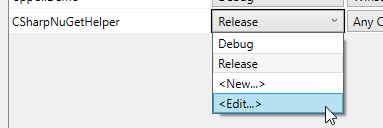
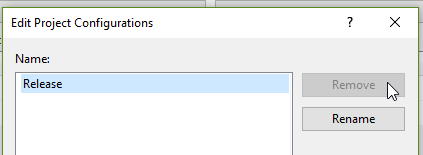
Then delete the unused Debug configuration:2018-09-05 12_31_42-Configuration Manager.png

2018-09-05 12_32_14-Configuration Manager.png

Make C++/CLI project dependent on the C# project:2018-09-05 12_34_09-Solution3 - Microsoft Visual Studio.png

(Note: I use the above for this dependency rather than adding a reference to the project to avoid copying the unused C# project to the C++/CLI’s output folders.)

Build the solution.

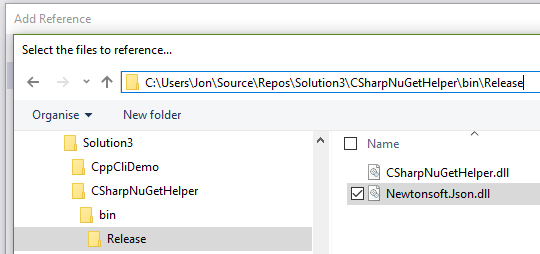
Add a reference to the Newtonsoft library by using the Browse option in the Add References dialog and locating the C# project’s bin/Release folder:

2018-09-05 12_38_57-Select the files to reference....png

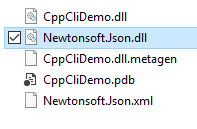
Build the solution again. The Newtonsoft library will now be copied to the C++/CLI build folder:

2018-09-05 12_40_59-Debug.png

First test: add some code to the C++/CLI class to demonstrate basic JSON serialisation:

#pragma once

using namespace System;

namespace CppCliDemo {

	using namespace Newtonsoft::Json;

	public ref class Class1
	{
	private:

		String^ test = "I am the walrus";

	public:

		property String^ Test
		{
			String^ get() { return this->test; }
			void set(String^ value) { this->test = value; }
		}

		String^ SerialiseToJson()
		{
			auto json = JsonConvert::SerializeObject(this, Formatting::Indented);
			return json;
		}
	};
}

Then add a simple C# console app, reference just the C++/CLI project, and test the class:2018-09-05 12_50_22-Reference Manager - CSharpConsoleTest.png

static void Main(string[] args)
{
var test = new CppCliDemo.Class1();
var json = test.SerialiseToJson();
Console.Write(json);
}


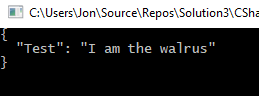
The output – nicely formatted JSON 🙂

2018-09-05 12_51_48-C__Users_Jon_Source_Repos_Solution3_CSharpConsoleTest_bin_Debug_CSharpConsoleTes.png

Second test, make sure a clean rebuild works as expected:

  1. Close the solution
  2. Manually delete all binaries and downloaded packages
  3. Re-open solution and build
  4. Verify that the build order is:
    1. CSharpNuGetHelper
    2. CppCliDemo
    3. CSharpConsoleTest (my console test demo app)
  5. Run the console app and verify the serialisation works as before