Building a Fluent HTML Report Generator with Claude AI

How I used AI pair programming to create a zero-dependency .NET reporting library in a few hours

Meta note: This blog post was written by Claude Sonnet 4.5 under my direction, which seems fitting given that the library it describes was also written by Claude under my direction. It’s Claude all the way down—except for the design decisions, which are all mine.

Meta meta note: this bit is written by me. This project and the blob post were started out of the necessity for a simple visual report that didn’t require the internet for support, and could be shared easily. I didn’t realise that single-file html pages could be made to produce such rich and illustrative reports. Had I tried to code the CSS or SVG code, or indeed any of the HTML, I would have spent days if not weeks trying to iron out the bugs. It seems that the AI tools are a perfect fit for this kind of problem and so I went from a domain-specific report to a general purpose version which has resulted in this project. I hope you enjoy reading or trying this project and maybe contributing to fixing problems or adding new features! – Jon.


The Problem: Too Simple or Too Complex

I needed to generate HTML reports from my C# applications. Not dashboards, not interactive web apps—just clean, professional-looking reports that I could email as attachments, open in any browser, or print to PDF. Think weekly team summaries, test results, audit logs, that sort of thing.

When I surveyed the .NET ecosystem, I found myself in a frustrating middle ground:

  • Too simple: String concatenation or basic templating gave me HTML, but styling was painful and charts were basically impossible without pulling in JavaScript libraries.
  • Too complex: Full reporting frameworks like Crystal Reports, Telerik Reporting, or SSRS were overkill. I didn’t need a report designer, a server, or a 50MB dependency tree.
  • PDF-focused: Libraries like iTextSharp or QuestPDF generate PDFs beautifully, but I wanted the flexibility of HTML—something I could view in a browser, send via email, and convert to PDF if needed.

What I really wanted was something in between: a simple API that could produce a self-contained HTML file with decent styling and basic charts, without requiring internet access, external CSS files, or JavaScript.

That’s when I discovered something I hadn’t fully appreciated: HTML files can contain everything they need inline. SVG graphics, embedded styles, even base64-encoded images. A single .html file can be completely self-contained and still look professional.


Enter Claude: AI Pair Programming

Rather than spending days building this from scratch, I decided to try something different: I would design the API and architecture, and let Claude AI write the implementation. This wasn’t about having AI “do it for me”—it was genuine pair programming, where I provided the vision, constraints, and design decisions, while Claude handled the mechanical work of writing classes, generating SVG paths, and handling HTML encoding edge cases.

The entire project took a few hours of elapsed time, spread across multiple sessions of:

  1. Me describing what I wanted
  2. Claude generating code
  3. Me testing the output
  4. Me providing feedback and refinements
  5. Repeat

The result is CDS.FluentHtmlReports, a zero-dependency .NET library that does exactly what I needed—nothing more, nothing less.


Key Design Decisions

1. Fluent API from Day One

The first and most important decision was the API design. I wanted a fluent interface where you could chain method calls to build up a report naturally:

var html = Generator
.Create("My Report")
.AddHeading("Summary")
.AddParagraph("Here's what happened this week.")
.AddTable(TableFixedHeader.Header, data)
.AddVerticalBarChart("Results", chartData)
.Generate();

This wasn’t just aesthetic—it enforced a crucial architectural constraint: reports are append-only. You can’t go back and modify earlier sections. You build the document linearly, top to bottom, which keeps the implementation simple and the mental model clear.

Claude and I discussed various approaches (builder pattern, document object model, template-based), but the fluent API won because it’s intuitive for C# developers and naturally prevents complexity creep.

2. Zero External Dependencies

The library targets .NET 8+ and has zero NuGet dependencies. Everything it needs is in the .NET Base Class Library. This means:

  • No version conflicts
  • No security vulnerabilities in third-party packages
  • No breaking changes when you upgrade
  • Tiny footprint

The trade-off? I couldn’t use fancy chart libraries or CSS frameworks. We had to generate everything ourselves—SVG paths, chart layouts, color schemes, responsive CSS. Claude handled the tedious math for pie chart arc calculations and bar chart scaling.

3. Self-Contained Output

Every HTML file generated by the library contains:

  • Inline CSS (no external stylesheets)
  • Inline SVG charts (no image files, no canvas, no JavaScript)
  • Base64-encoded images (if you add them)
  • Print-friendly @media print rules

This was non-negotiable. I wanted to generate a file, email it, and know it would look identical on the recipient’s machine—no missing assets, no broken links, no “this page requires an internet connection.”


How It Works: A Quick Tour

Here’s the example from the README that generates a complete weekly team report:

using CDS.FluentHtmlReports;
var teamMembers = new[]
{
new { Name = "Alice Johnson", Role = "Backend", TasksCompleted = 23, Status = "Active" },
new { Name = "Bob Smith", Role = "Frontend", TasksCompleted = 19, Status = "Active" },
new { Name = "Carol White", Role = "QA", TasksCompleted = 31, Status = "Active" }
};
string html = Generator
.Create("Weekly Team Report")
.AddParagraph("Here's a quick overview of this week's progress for the development team.")
.AddLabelValueRow([
("Week Ending", DateTime.Now.ToString("MMM dd, yyyy")),
("Team", "Engineering"),
("Sprint", "Sprint 24")
])
.AddLine()
.AddHeading("Team Summary")
.AddKpiCards([
("Total Tasks", "73"),
("Completed", "68"),
("In Progress", "5"),
("Success Rate", "93%")
])
.AddLine()
.AddHeading("Team Members")
.AddTable(TableFixedHeader.Header, teamMembers)
.AddLine()
.AddHeading("Task Completion by Role")
.AddVerticalBarChart("Tasks Completed This Week", [
("Backend", 23),
("Frontend", 19),
("QA", 31)
])
.AddLine()
.AddAlert(AlertLevel.Success, "All sprint goals achieved! Great work team! 🎉")
.AddFooter("Generated with CDS.FluentHtmlReports — {timestamp}")
.Generate();
File.WriteAllText("report.html", html);

That’s it. One fluent chain produces a complete, styled HTML document with tables, charts, and formatting.

Tables with Reflection

The AddTable() method uses reflection to automatically generate columns from your object properties. You can pass in:

  • Anonymous types (like the example above)
  • POCOs (plain old C# objects)
  • Records
  • Any IEnumerable<T>

Want conditional formatting? Pass a callback:

csharp

.AddTable(TableFixedHeader.Header, results, (row, prop, value) =>
{
if (prop == "Score" && value is int score && score < 50)
return "background: #ffcccc;"; // Red background for failing scores
return null;
})

Need summary rows? Specify which columns to aggregate:

.AddTable(TableFixedHeader.Header, salesData, new Dictionary<string, AggregateFunction>
{
["Revenue"] = AggregateFunction.Sum,
["Profit"] = AggregateFunction.Average
})

Charts Without JavaScript

This was the part I didn’t know was possible: you can generate decent-looking charts using pure SVG, no JavaScript required.

The library supports:

  • Vertical and horizontal bar charts
  • Pie and donut charts
  • Single and multi-series line charts

All rendered as inline SVG. Claude handled the trigonometry for pie slices and the scaling math for bar charts. Here’s a simple example:

.AddVerticalBarChart("Sales by Region", [
("North", 45000),
("South", 38000),
("East", 52000),
("West", 41000)
])

The SVG scales to the container width and prints cleanly to PDF. No external libraries, no network requests.


What Claude Actually Built

Let me be specific about what Claude wrote versus what I designed:

My Role (Design & Architecture)

  • Defined the fluent API surface
  • Specified the append-only constraint
  • Decided on zero dependencies
  • Chose which features to include (and which to skip)
  • Tested output and provided feedback
  • Made trade-off decisions

Claude’s Role (Implementation)

  • Wrote the GeneratorTextRendererTableRenderer, and ChartRenderer classes
  • Implemented reflection-based table generation
  • Calculated SVG paths for pie charts (trigonometry for arc segments)
  • Scaled bar charts and line charts correctly
  • Handled HTML encoding and edge cases
  • Generated the embedded CSS stylesheet
  • Wrote print-friendly media queries
  • Created the demo/test suite

The collaboration worked because I knew what I wanted but didn’t want to spend time on the how. Claude is exceptionally good at “write me a method that generates an SVG pie chart given these data points” but needs guidance on “should this API support in-place editing or be append-only?”


Brutal Honesty: What This Is NOT

Let’s be clear about the limitations, because this library was built to solve a narrow problem:

❌ Not a General-Purpose Reporting System

This isn’t Crystal Reports or Telerik. There’s no visual designer, no drill-down, no parameterized queries, no data binding to databases. It’s a programmatic API for generating static HTML.

❌ Not for Complex Layouts

Want pixel-perfect positioning? Multi-column grids? Overlapping elements? Use a proper PDF library. This library does simple, linear, top-to-bottom document flow.

❌ Not for Interactive Charts

The charts are static SVG. No tooltips, no zoom, no click handlers. If you need interactivity, use a JavaScript charting library like Chart.js or D3.

❌ Not a Replacement for Excel

If your users need to manipulate the data, export to Excel or CSV instead. This generates read-only reports.

✅ Perfect For

  • Automated email reports
  • Audit logs and test results
  • Weekly/monthly summaries
  • Server-generated status pages
  • Anything you’d previously done with Word mail merge but hated the process

It fits a specific niche: you need a simple, good-looking, self-contained HTML report that you can generate from code and share easily. That’s it.


The Development Process

Here’s what the workflow looked like:

Session 1: “Claude, I want to generate HTML reports with a fluent API. Here’s what I’m thinking…” We sketched out the Generator class and basic text methods.

Session 2: “The table rendering isn’t working right with anonymous types. Also, I want to add summary rows.” Claude fixed the reflection logic and added aggregation.

Session 3: “I need charts. Let’s start with vertical bars.” Claude generated the SVG rendering logic. I tested it, found scaling issues, gave feedback. Iterate.

Session 4: “Pie charts would be useful.” Claude calculated the arc paths. I discovered the colors weren’t distinct enough, so we refined the default palette.

Session 5-ish: Polish—adding alerts, badges, progress bars, collapsible sections, print styling.

Total elapsed time: a few hours spread over a couple of days. Most of that was me testing, thinking about edge cases, and deciding what features to add versus what to skip.

The key insight: AI is incredibly effective when you know what you want but don’t want to write the boilerplate yourself. I could have written this library manually, but it would have taken days, and I would have made mistakes in the SVG math that Claude got right the first time.

Architecture in Brief

The library is intentionally simple:

Generator // Public fluent facade
├── TextRenderer // Headings, paragraphs, lists, alerts, layout
├── TableRenderer // Reflection-based table generation
├── ChartRenderer // SVG chart rendering (bar, pie, line)
└── HtmlHelpers // HTML encoding utility

All renderer classes are internal. The only public API is GeneratorReportOptions, and a handful of enums. This keeps the surface area small and makes the library easy to maintain.

Under the hood, everything writes to a StringBuilder. The append-only design means we never need to go back and modify earlier HTML—we just keep adding to the string until .Generate() closes the document and returns the final output.


Try It Yourself

The library is available on NuGet:

dotnet add package CDS.FluentHtmlReports

The source code and demo suite are on GitHub: https://github.com/nooogle/CDS.FluentHtmlReports

The ConsoleTest project generates a bunch of sample reports that demonstrate every feature. Clone the repo, run dotnet run in the ConsoleTest directory, and it’ll create HTML files in your Downloads folder.

Lessons Learned

1. Constraints Drive Simplicity

By deciding early that reports would be append-only and zero-dependency, we avoided a lot of complexity. No undo/redo, no object models, no dependency injection—just a straightforward builder that writes HTML.

2. AI Excels at Well-Defined Problems

Claude was phenomenal at “generate SVG for a pie chart” or “write a method to create an HTML table from reflection” because those problems have clear inputs and outputs. It struggled more with ambiguous questions like “should we support templates?” where the answer depended on product vision.

3. Good Defaults Matter

We spent time tuning the default color palettes, font sizes, and spacing so that reports look decent out of the box. Users can override these via CSS or the options API, but most won’t need to.

4. Self-Contained HTML Is Underrated

I genuinely didn’t know you could make such nice-looking documents with zero external dependencies. No CDN links, no font downloads, no JavaScript—just HTML and inline SVG. It opens instantly, emails cleanly, and prints perfectly.

When to Use CDS.FluentHtmlReports

Use it when:

  • You need simple, automated reports from C# code
  • You want to email reports as attachments
  • You need print-friendly output (Ctrl+P → PDF)
  • You don’t want JavaScript or external dependencies
  • Your layout is linear/top-to-bottom
  • You’re okay with static (non-interactive) charts

Don’t use it when:

  • You need pixel-perfect layouts or complex positioning
  • You need interactive charts with tooltips and zoom
  • You want users to edit the data (use Excel/CSV instead)
  • You need a visual report designer for non-developers
  • You require advanced features like subreports or drill-down

Conclusion

Building CDS.FluentHtmlReports with Claude was an eye-opening experience. I got to focus on the design—what features to include, how the API should feel, what trade-offs to make—while Claude handled the mechanical work of turning those decisions into working code.The result is a library that does exactly what I needed: it generates clean, professional-looking HTML reports with a simple fluent API, zero dependencies, and self-contained output. It’s not trying to be everything to everyone—it solves a narrow problem well.If you’ve ever found yourself stuck between “too simple” and “too complex” when generating reports from .NET, give it a try. And if you’ve been curious about AI pair programming, this project is a great example of how it can work: you bring the vision and judgment, AI brings the speed and precision.The code is MIT licensed and available on GitHub. Pull requests welcome.


Jon is a C# developer working on vision systems and industrial applications. He writes about software development, image processing, and occasionally medieval Italian commerce.
Markdown viewer for .Net WinForms

Introduction

Last week I wanted to add a Wiki to a .Net WinForms project I was working on and surprisingly didn’t seem to find an obvious and simple candidate. With (a lot) of help from ChatGPT I found two great resources which I could use to make one for myself:

  1. Markdig: for rendering Markdown using HTML
  2. WebView2: the Microsoft Edge-based rendering engine

With these two controls, a small amount of manual, coding, and a lot of flow-coding, I put together a library:

  • CDS.Markdown

In here is a single control:

  • CDS.Markdown.MarkdownViewer

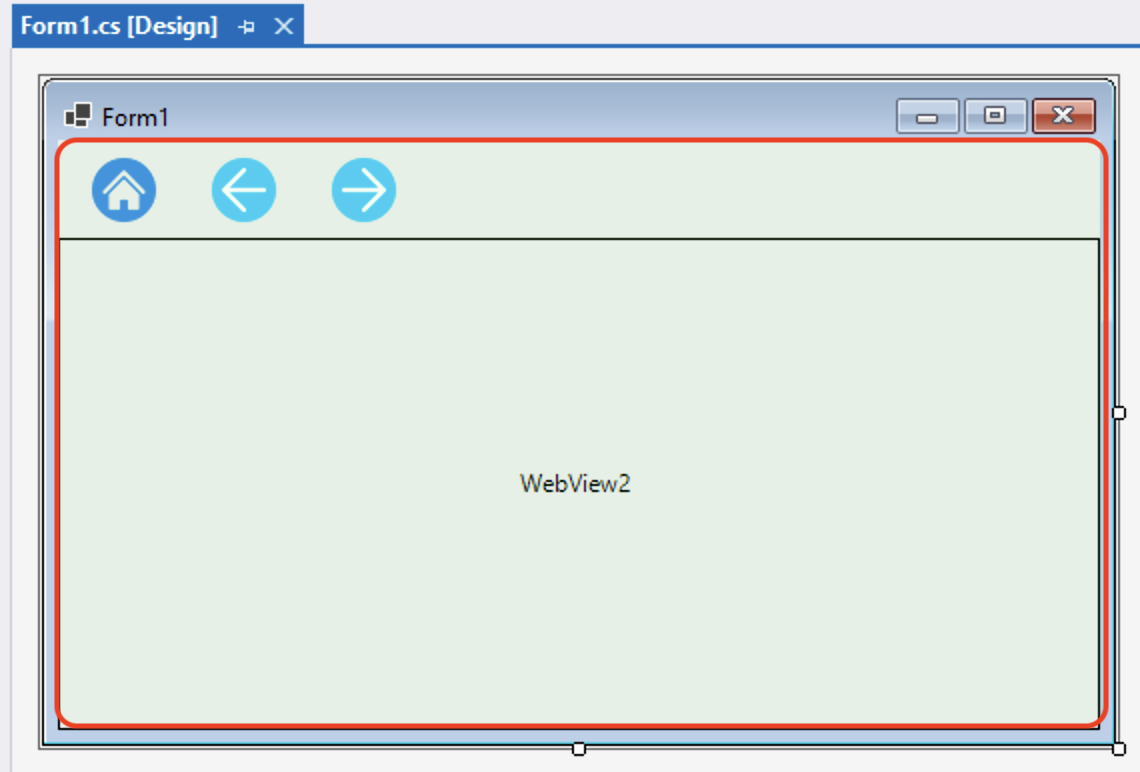
It looks like this:

And at runtime, it renders like this:


How to use

  1. In your .Net 6/8 or Framework project, add the CDS.Markdown package from the NuGet package manager.
  2. Drag and drop a MarkdownViewer control from the toolbox onto your form.
  3. Add a line of code to load a markdown file.

For example:

protected async override void OnShown(EventArgs e)
{
    base.OnShown(e);
    await markdownViewer1.LoadMarkdownAsync("Wiki/index.md");
}

In the project you must make sure your markdown files are copied at compile time. For example:

That’s it!


More information

  • See the demo project, available on GitHub.
  • Package information on NuGet.
  • Refer to the Markdown guide for more information on Markdown formatting.

Most of the code and effort was done by GPT4.1 via Copilot in Visual Studio 2022, using Agent mode.


Flow-coding

Flow-coding sits somewhere between conventional coding and vibe-coding. Unlike vibe-coding, which leans heavily on prompt engineering, flow-coding keeps the human deeply engaged in shaping the code while AI tools like Copilot act as an active partner. It’s an ongoing conversation where ideas and code evolve together.

DevExpress PropertyGridControl changes not detected using Ribbon button (by default)

TLDR; set CausesValidation to true on a ribbon bar button to make sure any controls that support validation, such as property grids, have their changes committed and validated before moving focus to the button.

I recently had a problem trying to verify data on a property grid – any changes I had just made, where the cursor was still active on the grid editor, were not committed when I clicked a ribbon bar button. For example, when my application starts it looks like this:

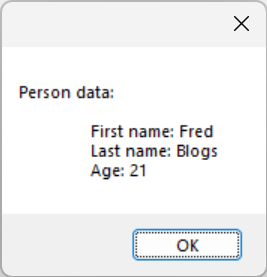
And when I click ‘Display person’ I get a message box:

However, if I change the ‘Age’ property and click the ‘Display person’ button without first hitting the enter key, I see this:

The DevExpress button click does not result in the changes being noticed before displaying the message box because the CausesValidation property is false:

Note that the built-in .Net Framework button has this property set to true by default.

Changing the property to true causes the property grid’s validation to be performed which includes attempting to commit any live changes to the underlying object, the Person instance.

And adding a message box to the property grid’s validating event makes the change and sequence of events more visible:

First:

Then:

Written this post because I figured this out about 2 years ago and today forgot everything !

NU1201: xUnit project not compatible with .Net 5 WinForms project

I have a .Net 5 WinForms Control library (Windows 10, Visual Studio 2019) and want to add some unit tests for the non-UI classes. After adding an xUnit project and referencing my library I get this error:

error NU1201: Project WinFormsControlLibrary1 is not compatible with net5.0 (.NETCoreApp,Version=v5.0). Project WinFormsControlLibrary1 supports: net5.0-windows7.0 (.NETCoreApp,Version=v5.0)

This happens because the WinForms library targets .Net 5 Windows, which is more specific than general .Net 5.

I fix this by double-clicking the unit test project (in solution explorer) and editing the target framework from:

<TargetFramework>net5.0</TargetFramework>

To:

<TargetFramework>net5.0-windows</TargetFramework>

Then, close my project and Visual Studio, and re-open it. (This gives VS2019 a chance to figure what’s going on!) Now the project compiles and I can create and run unit tests.


Note: The Target Framework, shown in the project properties page, is now blank:

So I select .Net 5, close the page, and look again at the project JSON file – now the target framework has changed to:

<TargetFramework>net5.0-windows7.0</TargetFramework>

What’s the difference? I think, nothing! Although at some point I’m sure this will change. More information here: https://github.com/dotnet/sdk/issues/14553

C# scripting!

After much struggle, learning and googling, I’ve finally made my own small library that provides a simple C# code editor and a bunch of simple C# scripting utilities.

A few years ago I wrote a simple Scintilla.net-based code editor and, with the Microsoft CSharp scripting library, managed to let my apps provide code editing and run-time C# script execution. The code was scrappy and without intellisense also difficult to use for non-trivial scripts.

Then I found the RoslynPad project, which uses AvalonEdit for the underlying text editor to provide a WPF C# scripting editor. As well as a stand-alone application the text editor is also available via NuGet. Since I work almost entirely with WinForms, rather than WPF, I wanted an easy-to-use drag-and-drop widget to provide code editing. So I wrote CDS.CSharpScripting.

As well as the code editor there are classes for script compilation and execution, including EasyScript, a class that allows for one-line compilation and execution. The compiler utilities provide access to the compilation results such as errors and warning.

Example 1:

EasyScript<object>.Go("Console.WriteLine(\"Hello world, from the script!\");");

Output:

Hello world, from the script!

There’s still lots to do on the project including mode demos, getting code actions to work – they actual actions do already work but the menu text is broken.

If you need something with more power than my simple code editor wrapper then the RoslynPad project is available on GitHub. There are also countless demos showing how to use Microsoft’s C# scripting classes directly. But if you just need a quick code editor and the ability to compile and run code at runtime, capture script return values and share data between the host app and the script, then this is not a bad place to start.

Happy scripting.

🙂

VS2019 C# project always builds

Some of my projects always build, whereas others just say they’re already up-to-date.

I’ve finally got something that’s actually helping me isolate the problems, and it’s related to bringing in packages via NuGet that bring in lots of other dependencies.

The first step is to change the MSBuild output from Minimal to Diagnostics:

Run the build once just in case anything really has changed.

Build the project and look at the top of the diagnostics in the output window. As an example, I have this

1>Project 'AmberOptix.AOX3.Scripting' is not up to date. CopyLocal reference 'C:\dev\Projects\Amber\AOX3\AmberOptix.AOX3.Scripting\bin\Debug\System.Diagnostics.StackTrace.dll' is missing from output location.

Next I remove this assembly (System.Diagnostics.StackTrace.dll) from my packages.config file and the references. Then I build again and repeat the process until it eventually says that everything is up-to-date.

For some of the ‘missing’ assemblies I can guess that several others may also not be required. For example I deleted 3 System.Net.XXX packages and references when System.Net.Http was reported as missing.

As a guideline I had to remove over 20 packages and references from my scripting library to get this working.

An alternative to this manual approach of deleting one at a time is to delete all packages and references, then go through a cycle of adding back NuGet packages and normal assembly references as required.

I’m still sure there must be a better and safer way to do this! I think JetBrains’ ReSharper has tools but haven’t had a chance to trial yet.

Windows system timer granularity

While running one of my apps on a Windows 10 VM I noticed that the timing was much different to that seen on the host PC. After lots of digging I finally found that the granularity of the system timer on the VM was around 16ms versus around 0.5ms on the host PC. My app is using some 1-5 millisecond sleeps but when the granularity is 16ms then 1ms becomes 16! (The actual granularity is 15.6ms due to a default 64Hz timer frequency).

Some cool resources on the web related to this:

Solved my problems by setting the granularity to the minimum supported by the PC; this setting remains in place until the application exits. So it just seems that my VM doesn’t have anything running that would otherwise cause the timer to run more quickly than the default (of 64Hz), whereas my development PC must have all sorts that are running the timer flat out; probably one reason my battery goes down more quickly than expected!

To query and change the granularity I used theses methods via C#:

I then wrote a little wrapper class to let me play with the timings using the .Net TimeSpan. Note: this is a frustrating struct to use because it really doesn’t want to use fractions of a millisecond without more than a bit of persuasion, specifically because FromMilliseconds will only consider the requested value to the nearest millisecond.

/// <summary>
/// Utility to query the timer resolution
/// </summary>
class TimerResolution
{
    [DllImport("ntdll.dll", SetLastError = true)]
    private static extern int NtQueryTimerResolution(out int MinimumResolution, out int MaximumResolution, out int CurrentResolution);


    [DllImport("ntdll.dll", SetLastError = true)]
    private static extern int NtSetTimerResolution(int DesiredResolution, bool SetResolution, out int CurrentResolution);


    private static TimeSpan TimeSpanFrom100nsUnits(int valueIn100nsUnits)
    {
        var nanoseconds = (double)valueIn100nsUnits * 100.0;
        var seconds = nanoseconds / 1000000000.0;
        var ticks = seconds * System.Diagnostics.Stopwatch.Frequency;
        var timeSpan = TimeSpan.FromTicks((long)ticks);
        return timeSpan;
    }


    private static (TimeSpan min, TimeSpan max, TimeSpan cur) Query()
    {
        NtQueryTimerResolution(out var min, out var max, out var cur);
        return (min: TimeSpanFrom100nsUnits(min), max: TimeSpanFrom100nsUnits(max), cur: TimeSpanFrom100nsUnits(cur));
    }


    /// <summary>Gets the minimum timer resolution</summary>
    public static TimeSpan MinResolution => Query().min;


    /// <summary>Gets the maximum timer resolution</summary>
    public static TimeSpan MaxResolution => Query().max;


    /// <summary>Gets/sets the current timer resolution</summary>
    public static TimeSpan CurrentResolution
    {
        get { return Query().cur; }

        set
        {
            var valueInSeconds = value.TotalMilliseconds / 1000.0;
            var valueInNanoseconds = valueInSeconds * 1000000000.0;
            var valueIn100Nanoseconds = (int)(valueInNanoseconds / 100.0);
            NtSetTimerResolution(DesiredResolution: valueIn100Nanoseconds, SetResolution: true, out _);
        }
    }
}

A little test app on my VM produced these results…

Minimum resolution:   15.6ms
Maximum resolution:   0.5ms
Current resolution:   15.6ms

Attempt to change to 2ms
Current resolution:   00:00:00.0020000
DateTime granularity: 00:00:00.0020970
Sleep 0:              00:00:00.0000009
Sleep 1:              00:00:00.0020053

Attempt to change to 5ms
Current resolution:   00:00:00.0050000
DateTime granularity: 00:00:00.0050328
Sleep 0:              00:00:00.0000012
Sleep 1:              00:00:00.0049719

Attempt to change to 0.5ms
Current resolution:   00:00:00.0005000
DateTime granularity: 00:00:00.0005471
Sleep 0:              00:00:00.0000008
Sleep 1:              00:00:00.0011774

Attempt to change to 15.6ms
Current resolution:   00:00:00.0156250
DateTime granularity: 00:00:00.0156280
Sleep 0:              00:00:00.0000011
Sleep 1:              00:00:00.0155707

C# from clause vs nested foreach loops

Short story: writing a unit test for an image processing function, I had the following key parameters for each test:

enum Algorithm {  A, B, C }; 
enum ImageFormat {  Gray, Color }; 
enum ImageSize {  Small, Medium, Large };

I wrote a core test function that worked on just one combination of the 3 parameters. E.g.

void Test(
    Algorithm algorithm, 
    ImageFormat imageFormat, 
    ImageSize imageSize)
{
    Console.WriteLine($"Testing algorithm {algorithm} for " +
        {imageFormat} image with {imageSize} size");

    // the test...
}

Next, I wrote a utility to make iterating the values of an enumeration a little easier.. still not sure why this isn’t part of .Net yet:

class EnumHelper<T>
{
    static public T[] Values
    {
        get { return (T[])Enum.GetValues(typeof(T)); }
    }
}

Then, I wrote the nested loops that built each combination and sent them for testing:

void TestAllV1()
{
    foreach (var algorithm in EnumHelper<Algorithm>.Values)
    {
        foreach (var imageFormat in EnumHelper<ImageFormat>.Values)
        {
            foreach (var imageSize in EnumHelper<ImageSize>.Values)
            {
                Test(algorithm, imageFormat, imageSize);
            }
        }
    }
}

Now there’s nothing really wrong with the above, but it looked like something that should be able to be written more simply. So I came up with this:

void TestAllV2()
{
    var tests =
        from algorithm in EnumHelper<Algorithm>.Values
        from imageFormat in EnumHelper<ImageFormat>.Values
        from imageSize in EnumHelper<ImageSize>.Values
        select (algorithm, imageFormat, imageSize);


    foreach (var test in tests)
    {
        Test(test.algorithm, test.imageFormat, test.imageSize);
    }
}

The use of the from clause seems better, mainly due to the reduced level of nesting. The Visual Studio 2019 code analysis metrics are interesting:

MemberMICycC
ClsC
TestAllV1() 76 4 7
TestAllV2()69 2 18

Where:

  • MI: Maintainability Index
  • CycC: Cyclomatic Complexity
  • ClsC: Class coupling

So the foreach approach is (allegedly!) more maintainable, while the from clause method has a lower cyclomatic complexity. This latter metric reinforces the idea that this is slightly simpler than the foreach technique.

It’s also quite easy to add specific filtering inside the tests generator. For example, to quickly stop testing the B algorithm:

var tests =
    from algorithm in EnumHelper<Algorithm>.Values
    where algorithm != Algorithm.B
    from imageFormat in EnumHelper<ImageFormat>.Values
    from imageSize in EnumHelper<ImageSize>.Values
    select (algorithm, imageFormat, imageSize);

Food for thought 🙂

Edit: actually found another way to do this using the Linq SelectMany method, but I’m not keen on this:

void TestAllV3()
{
    var tests =
        EnumHelper<Algorithm>.Values.SelectMany(
            algorithm => EnumHelper<ImageFormat>.Values.SelectMany(
                imageFormat => EnumHelper<ImageSize>.Values.Select(
                    imageSize => (algorithm, imageFormat, imageSize))));

    foreach(var test in tests)
    {
        Test(test.algorithm, test.imageFormat, test.imageSize);
    }
}

TimeSpan.FromMilliseconds rounding!

Today’s fairly brutal gotcha: TimeSpan.FromMilliseconds accepts a double but internally rounds the value to a long before converting to ticks (multiplying by 10000).

For example, using C# interactive in VS2017:

> TimeSpan.FromMilliseconds(1.5)
[00:00:00.0020000]

> TimeSpan.FromMilliseconds(1234.5678)
[00:00:01.2350000]

Using .FromTicks works as expected:


> TimeSpan.FromTicks(15000)
[00:00:00.0015000]

To be fair this is the documented behavior:

The value parameter is converted to ticks, and that number of ticks is used to initialize the new TimeSpan. Therefore, value will only be considered accurate to the nearest millisecond.

But really, it isn’t expected since the input is a double!

This all came to light because a camera system I’m involved with started overexposing –  the integration time was programmed as 2ms instead of the desired 1.5ms. Hmmph!

So a little alternative:

> TimeSpan TimeSpanFromMillisecondsEx(double ms) =>
    TimeSpan.FromTicks((long)(ms * 10000.0))

> TimeSpanFromMillisecondsEx(1.5)
[00:00:00.0015000]


Note: the FromMilliseconds method delegates to an internal Interval method, passing the milliseconds value and 1 as the scale:


private static TimeSpan Interval(double value, int scale)
{
    if (double.IsNaN(value))
    {
        throw new ArgumentException(Environment.GetResourceString("Arg_CannotBeNaN"));
    }
    double num = value * scale;
    double num2 = num + ((value >= 0.0) ? 0.5 : -0.5);
    if ((num2 > 922337203685477) || (num2 = 0.0) ? 0.5 : -0.5);
    if ((num2 > 922337203685477) || (num2 < -922337203685477))
    {
        throw new OverflowException(Environment.GetResourceString("Overflow_TimeSpanTooLong"));
    }
    return new TimeSpan(((long) num2) * 0x2710L);
}


VS2017 and NuGet for C++/CLI

At the time of writing it still isn’t possible to use the NuGet package manager for C++/CLI projects. My workaround is to:

  1. Add a new C# class library project to the solution.
  2. Add any NuGet packages to this new project.
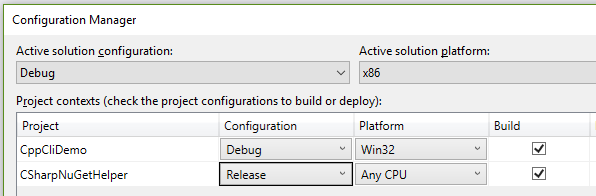
  3. Configure the C# project so it always builds in Release configuration.
  4. Use the Build Dependencies dialog to ensure that the new C# project is built before the C++/CLI project.
  5. Add to the C++/CLI project a reference to the NuGet packages by using the output folder of the C# project.

Example

Create a new solution with a C++/CLI class library…

Add a C# class library (.Net Framework), delete Class1.cs, then go to the solution’s NuGet package manager:

2018-09-05 12_19_13-.png

Install the Newtonsoft.Json package for the C# project:2018-09-05 12_29_01-Solution3 - Microsoft Visual Studio.png

Change the C# build configuration so that the Release configuration builds for both Debug and Release:2018-09-05 12_31_24-Configuration Manager.png

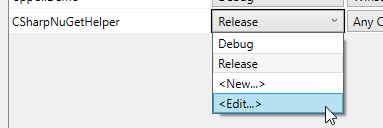
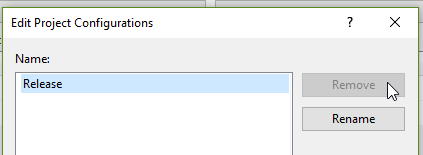
Then delete the unused Debug configuration:2018-09-05 12_31_42-Configuration Manager.png

2018-09-05 12_32_14-Configuration Manager.png

Make C++/CLI project dependent on the C# project:2018-09-05 12_34_09-Solution3 - Microsoft Visual Studio.png

(Note: I use the above for this dependency rather than adding a reference to the project to avoid copying the unused C# project to the C++/CLI’s output folders.)

Build the solution.

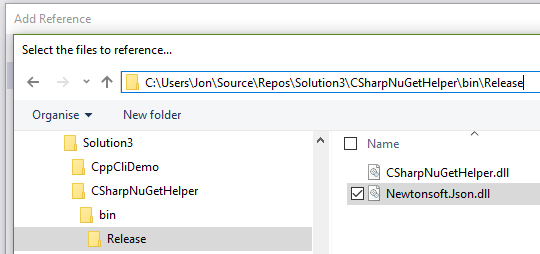
Add a reference to the Newtonsoft library by using the Browse option in the Add References dialog and locating the C# project’s bin/Release folder:

2018-09-05 12_38_57-Select the files to reference....png

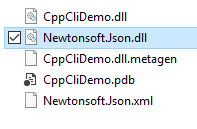
Build the solution again. The Newtonsoft library will now be copied to the C++/CLI build folder:

2018-09-05 12_40_59-Debug.png

First test: add some code to the C++/CLI class to demonstrate basic JSON serialisation:

#pragma once

using namespace System;

namespace CppCliDemo {

	using namespace Newtonsoft::Json;

	public ref class Class1
	{
	private:

		String^ test = "I am the walrus";

	public:

		property String^ Test
		{
			String^ get() { return this->test; }
			void set(String^ value) { this->test = value; }
		}

		String^ SerialiseToJson()
		{
			auto json = JsonConvert::SerializeObject(this, Formatting::Indented);
			return json;
		}
	};
}

Then add a simple C# console app, reference just the C++/CLI project, and test the class:2018-09-05 12_50_22-Reference Manager - CSharpConsoleTest.png

static void Main(string[] args)
{
var test = new CppCliDemo.Class1();
var json = test.SerialiseToJson();
Console.Write(json);
}


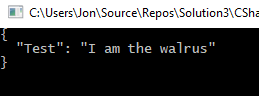
The output – nicely formatted JSON 🙂

2018-09-05 12_51_48-C__Users_Jon_Source_Repos_Solution3_CSharpConsoleTest_bin_Debug_CSharpConsoleTes.png

Second test, make sure a clean rebuild works as expected:

  1. Close the solution
  2. Manually delete all binaries and downloaded packages
  3. Re-open solution and build
  4. Verify that the build order is:
    1. CSharpNuGetHelper
    2. CppCliDemo
    3. CSharpConsoleTest (my console test demo app)
  5. Run the console app and verify the serialisation works as before