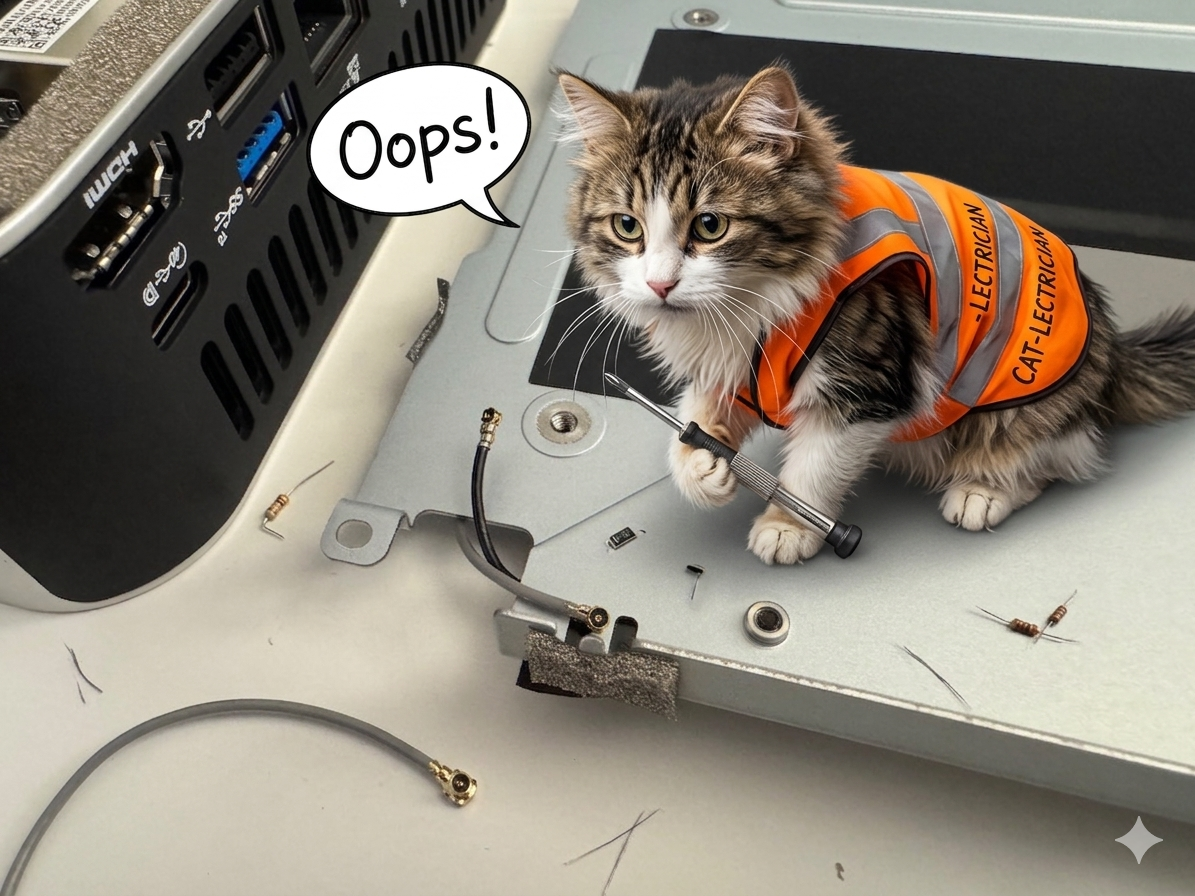
After installing the second SSD (covered in Part 1), my Bluetooth mouse stopped working entirely and Wi-Fi was alternating between no connection and a single bar. I spent an hour working through BIOS updates and Windows patches before a single forum post pointed me to the real cause: the antenna leads on the Geekom A9 Max can detach when the heatsink plate is removed or carelessly repositioned. Source: TechPowerUp Geekom A9 Max review.
If your symptoms match, stop chasing drivers and BIOS updates. Open the unit and check the leads first.
Step 1: Recognise the symptoms
Bluetooth completely dead. Wi-Fi dropping between no signal and one bar. These symptoms appeared immediately after reassembling the unit following the SSD upgrade. If this matches your situation and you have recently had the unit open, disconnected antenna leads are almost certainly the cause.
Step 2: Open the unit again
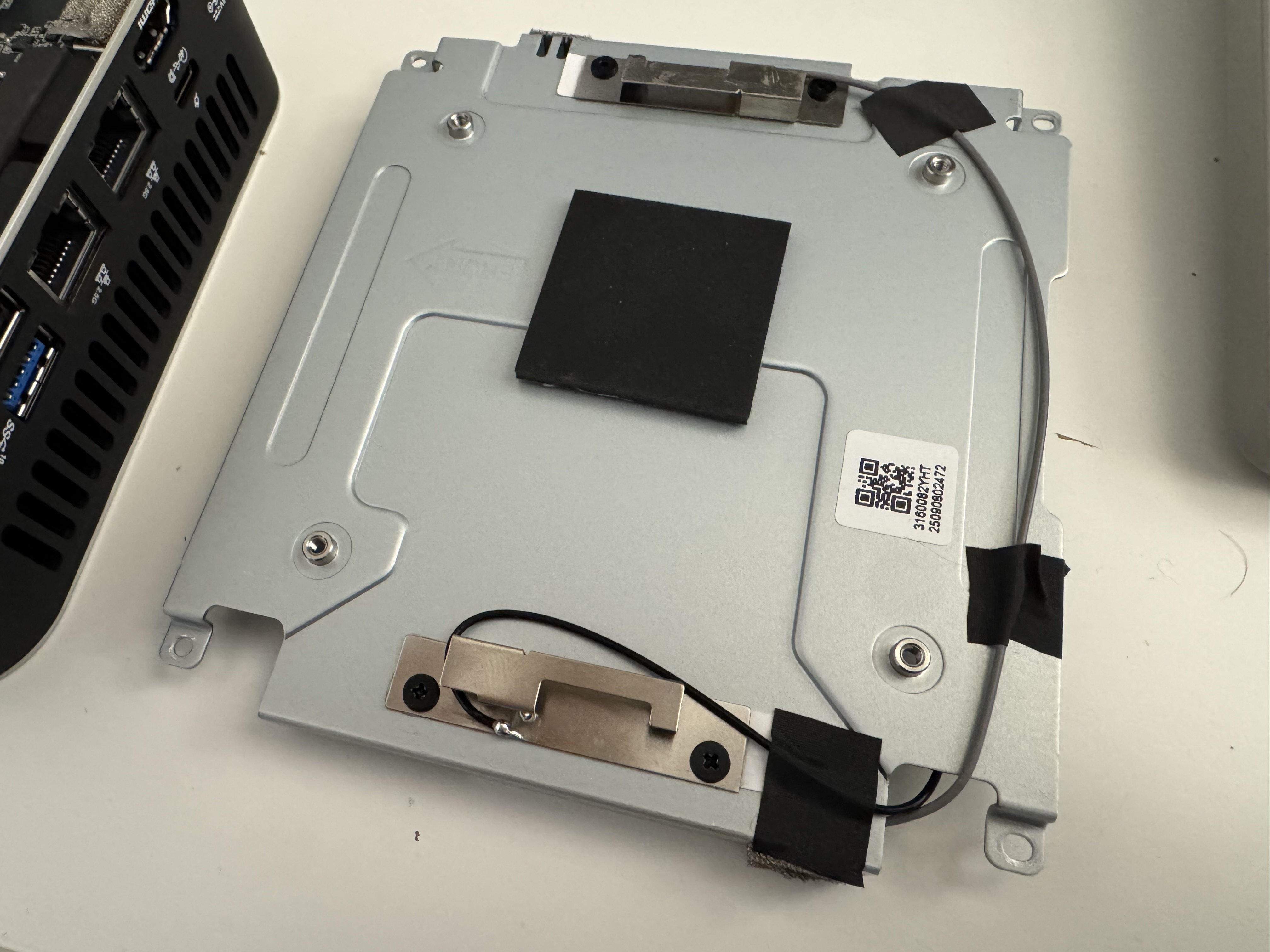
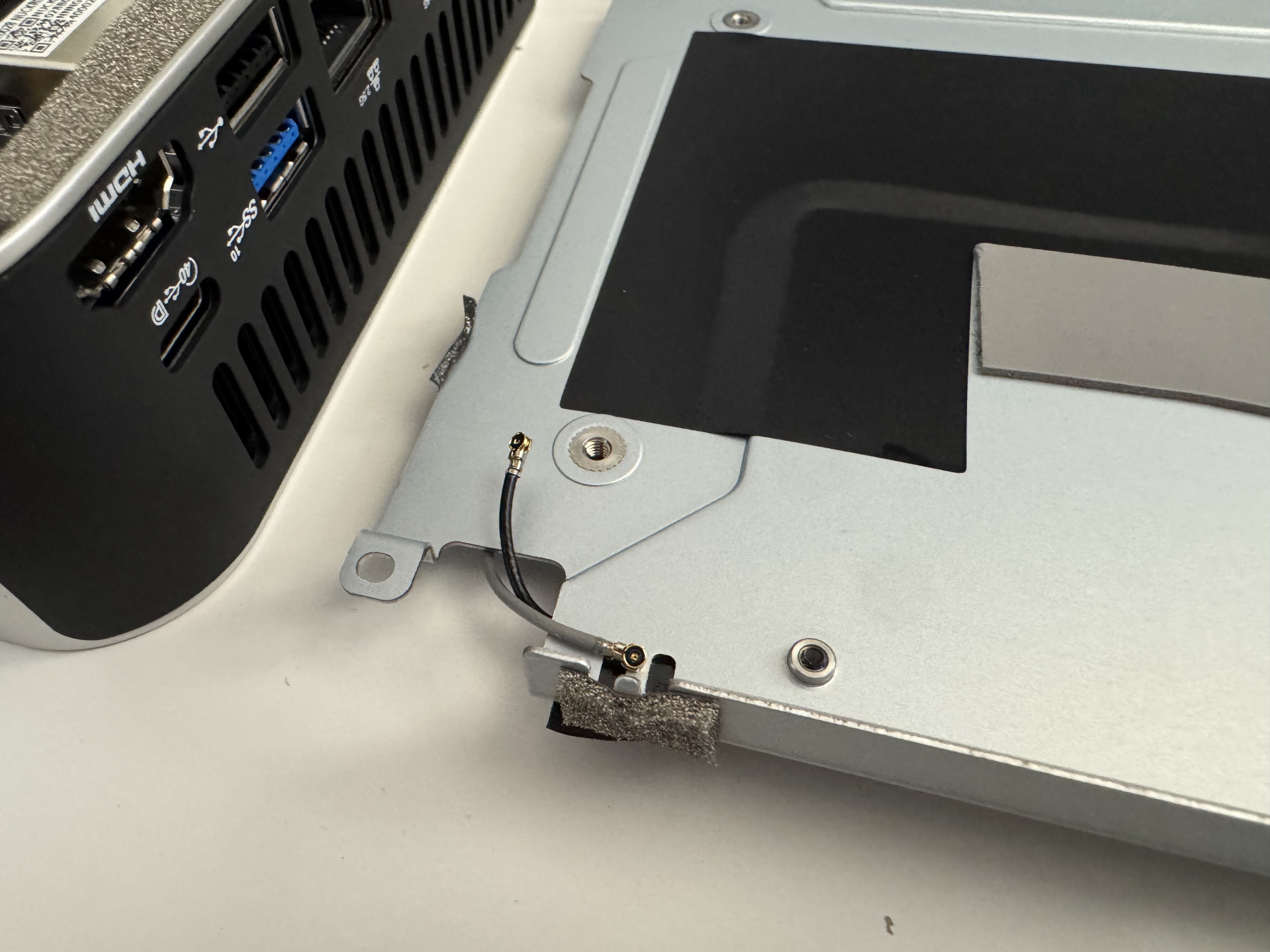
Follow the same disassembly steps as Part 1: remove the rubber feet, unscrew the four chassis screws, and gently lift away the heat sink. In my case it kept moving, since the antenna wires were disconnected!
Step 3: Remove the primary SSD
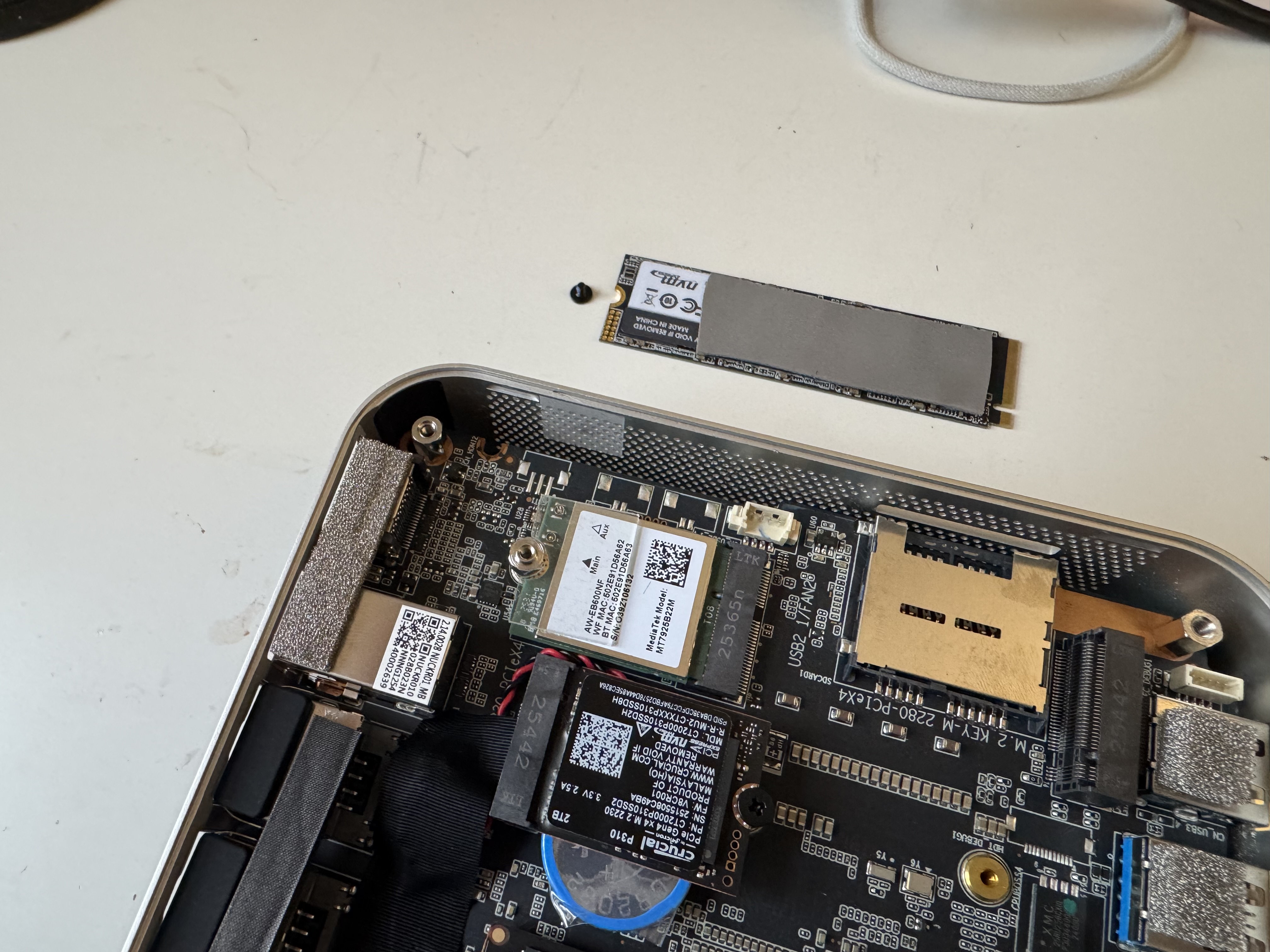
The Wi-Fi board sits underneath the primary M.2 2280 SSD. Unscrew the retaining screw, lift the drive out at an angle, and set it aside safely.
Step 4: Lift the clear retention flap
With the SSD removed, you will see a small clear plastic flap designed to hold the antenna leads against the Wi-Fi board. Lift it carefully to expose the leads and their connection points.
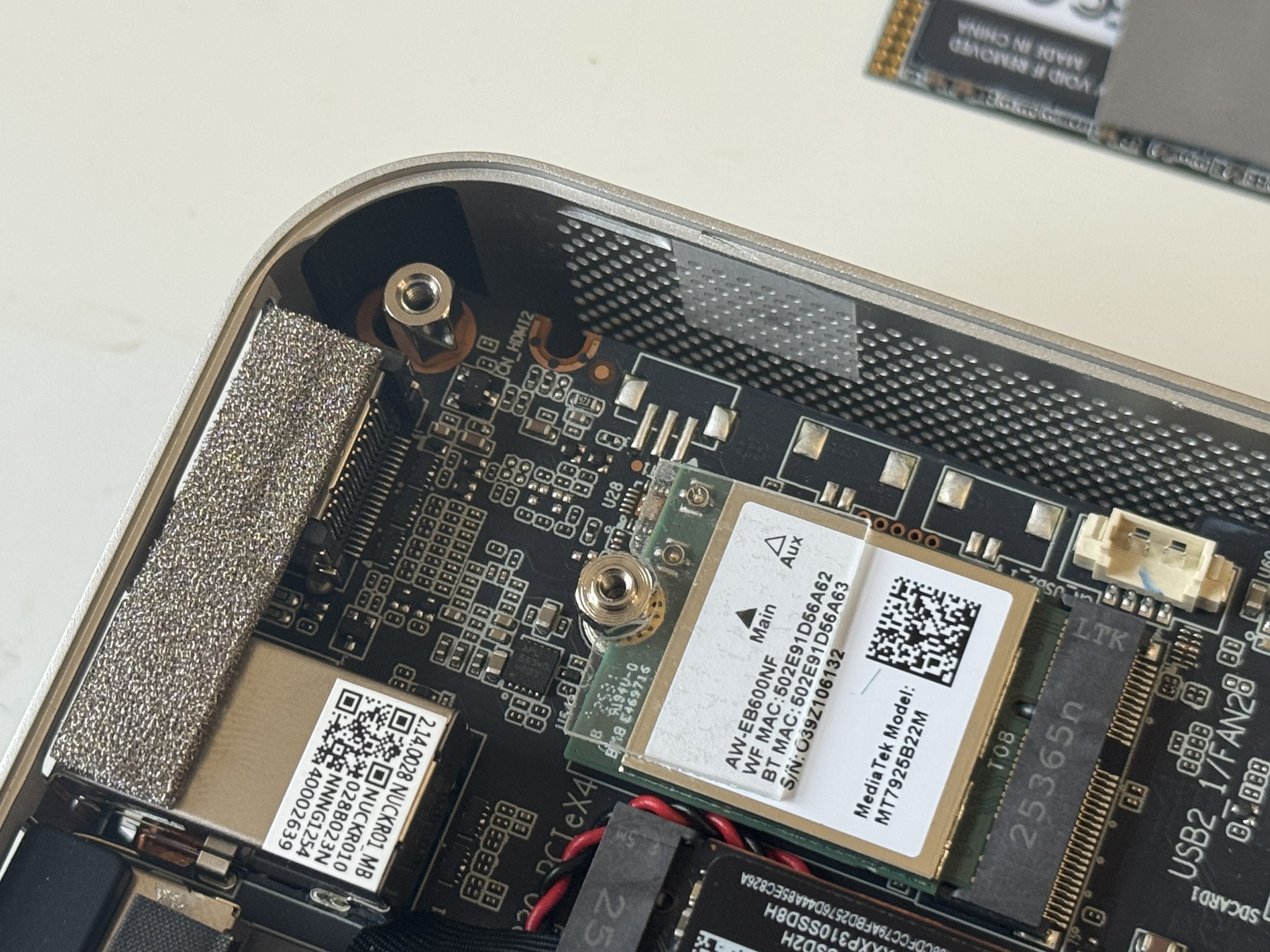
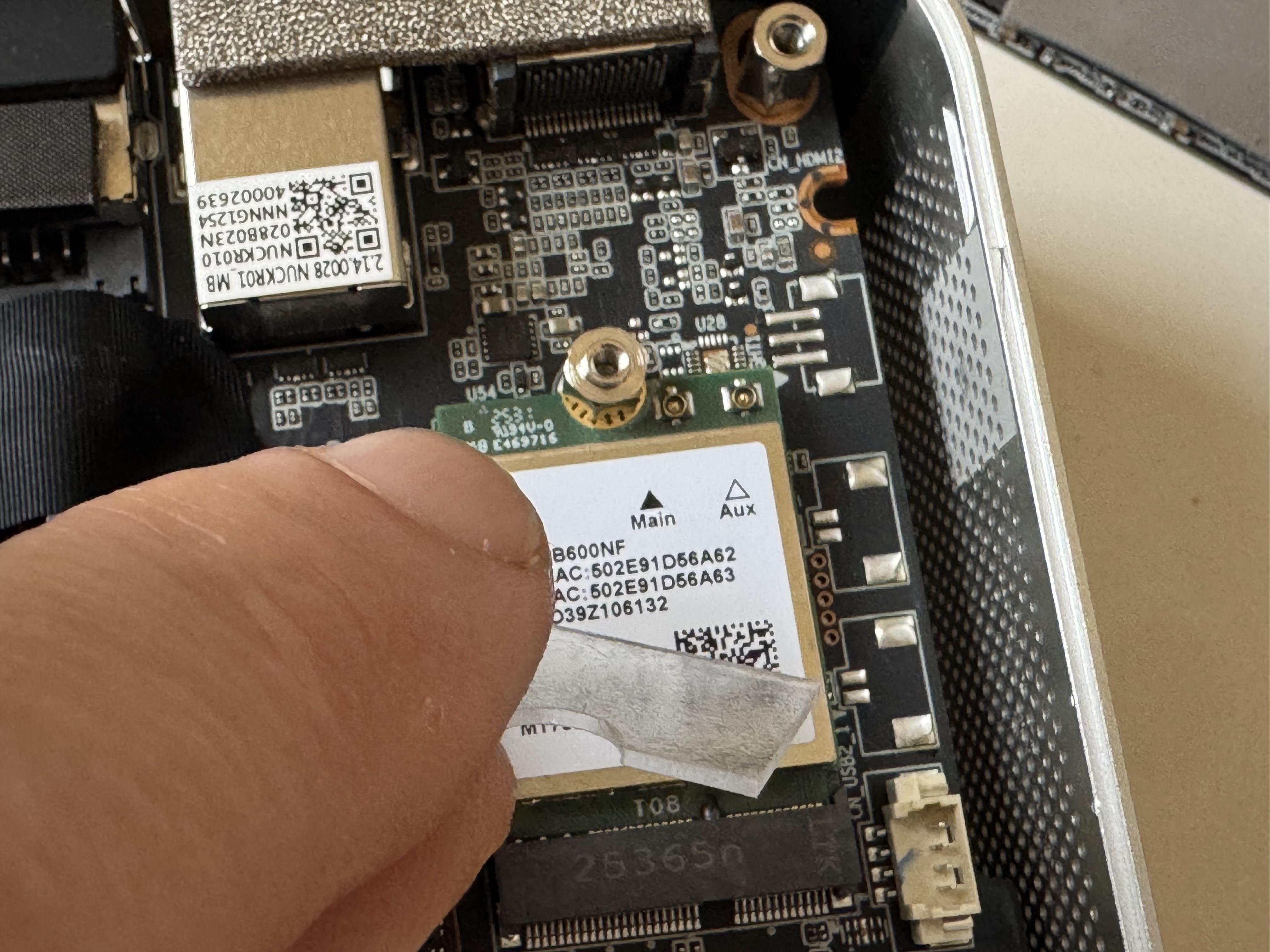
Step 5: Reconnect the antenna leads
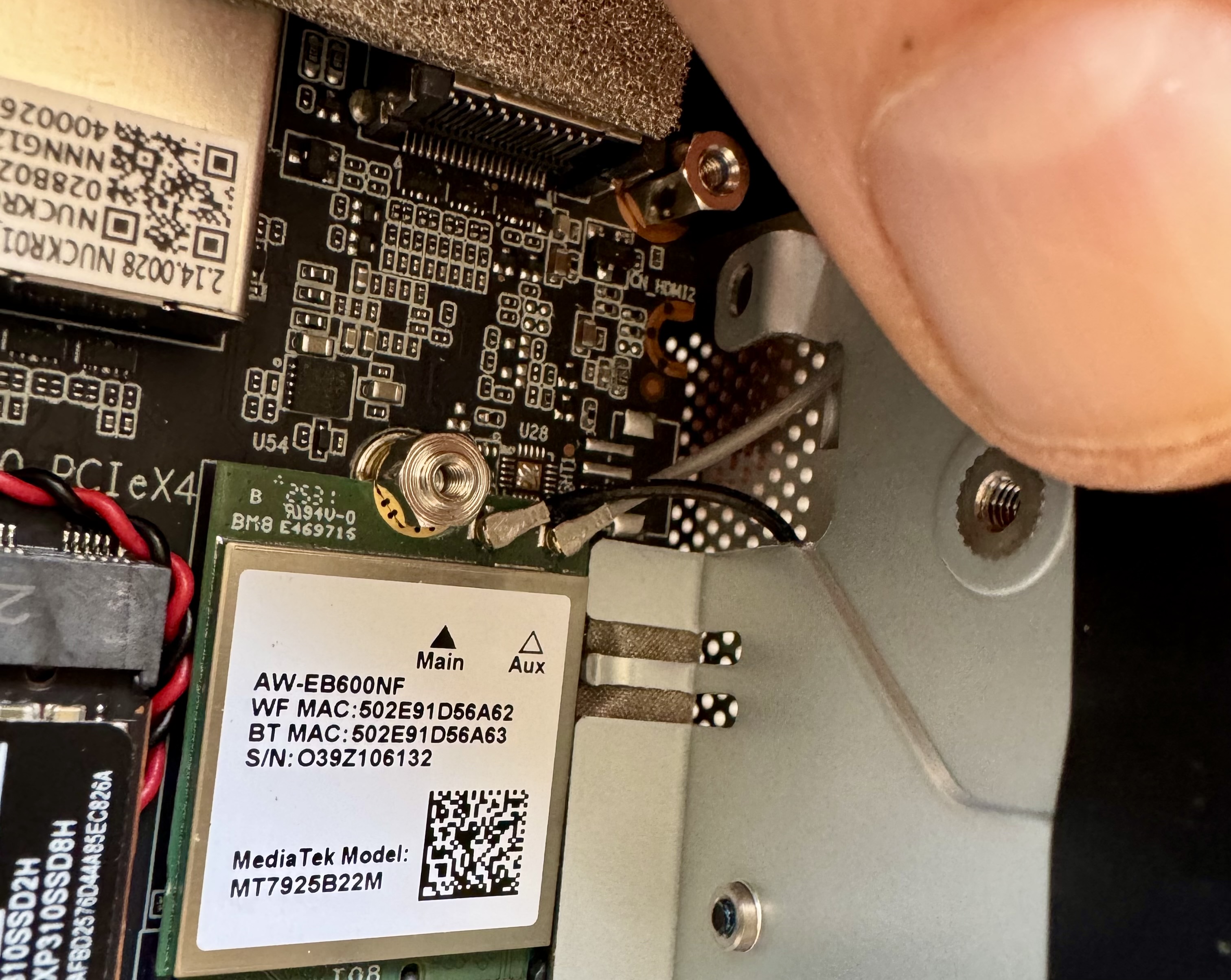
There are two leads: one black and one grey. Each has a small circular connector with a tiny hole on one side that allows it to snap onto a post on the Wi-Fi board. Press each one down firmly until you feel and hear it click into place.
- Black lead connects to the Main terminal
- Grey lead connects to the Aux terminal
Do not force them. If positioned correctly over the post, they click on with light pressure.
Step 6: Secure the flap and reassemble
Press the clear retention flap back down firmly over both leads. Then reassemble in reverse order: replace the primary SSD and secure its retaining screw, reattach the heatsink, fit the base panel, screw it down, and press the rubber feet back into their slots.
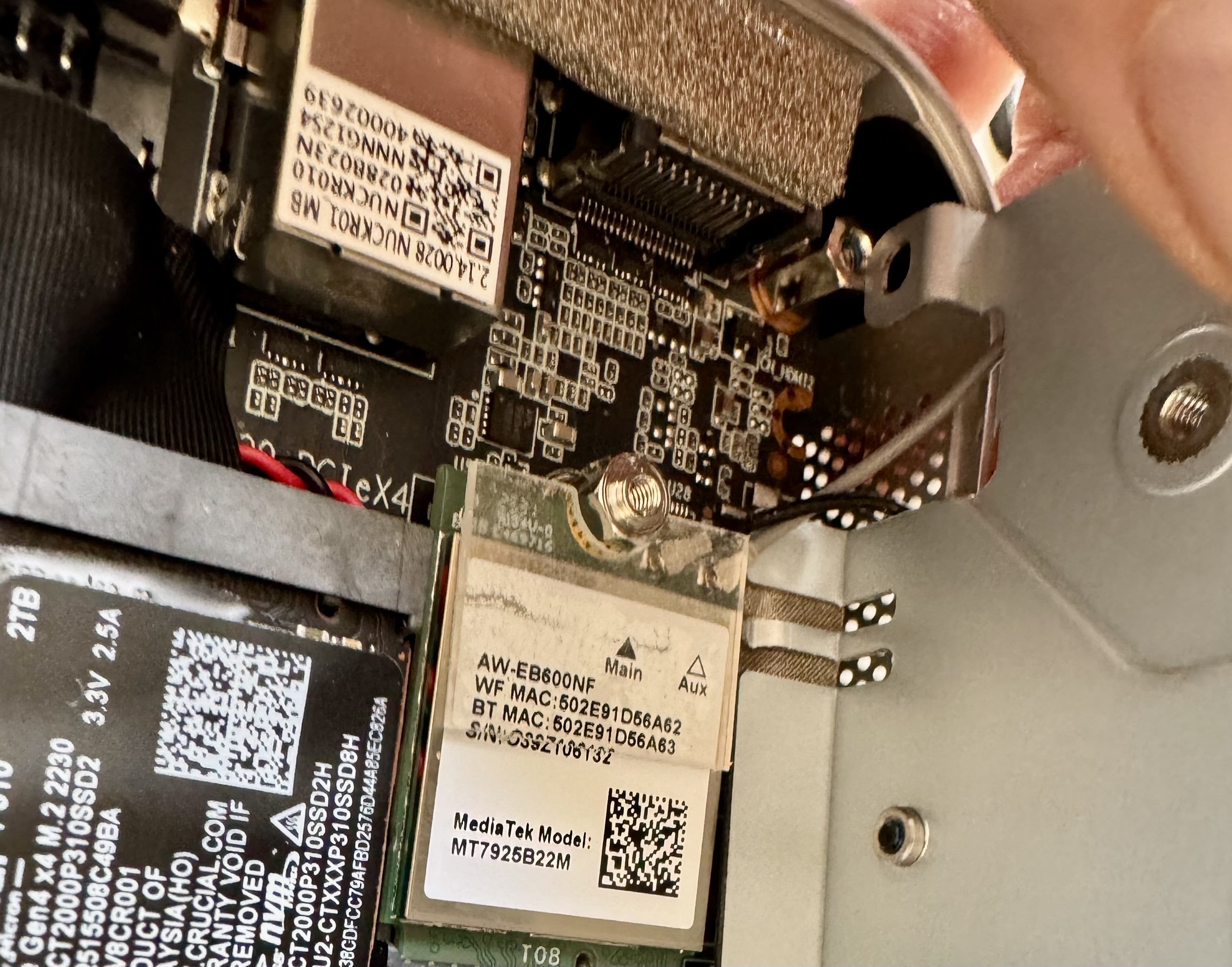
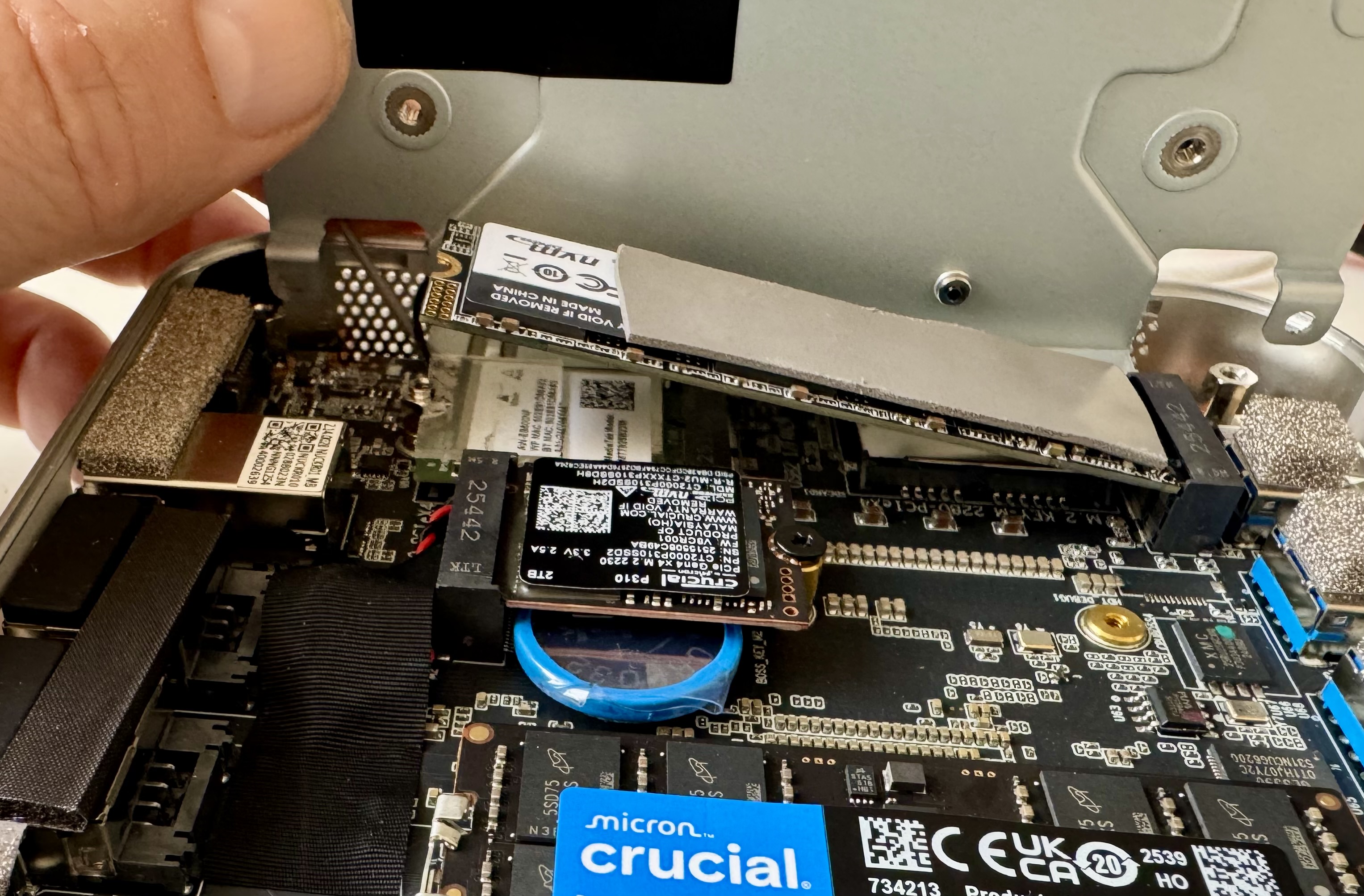
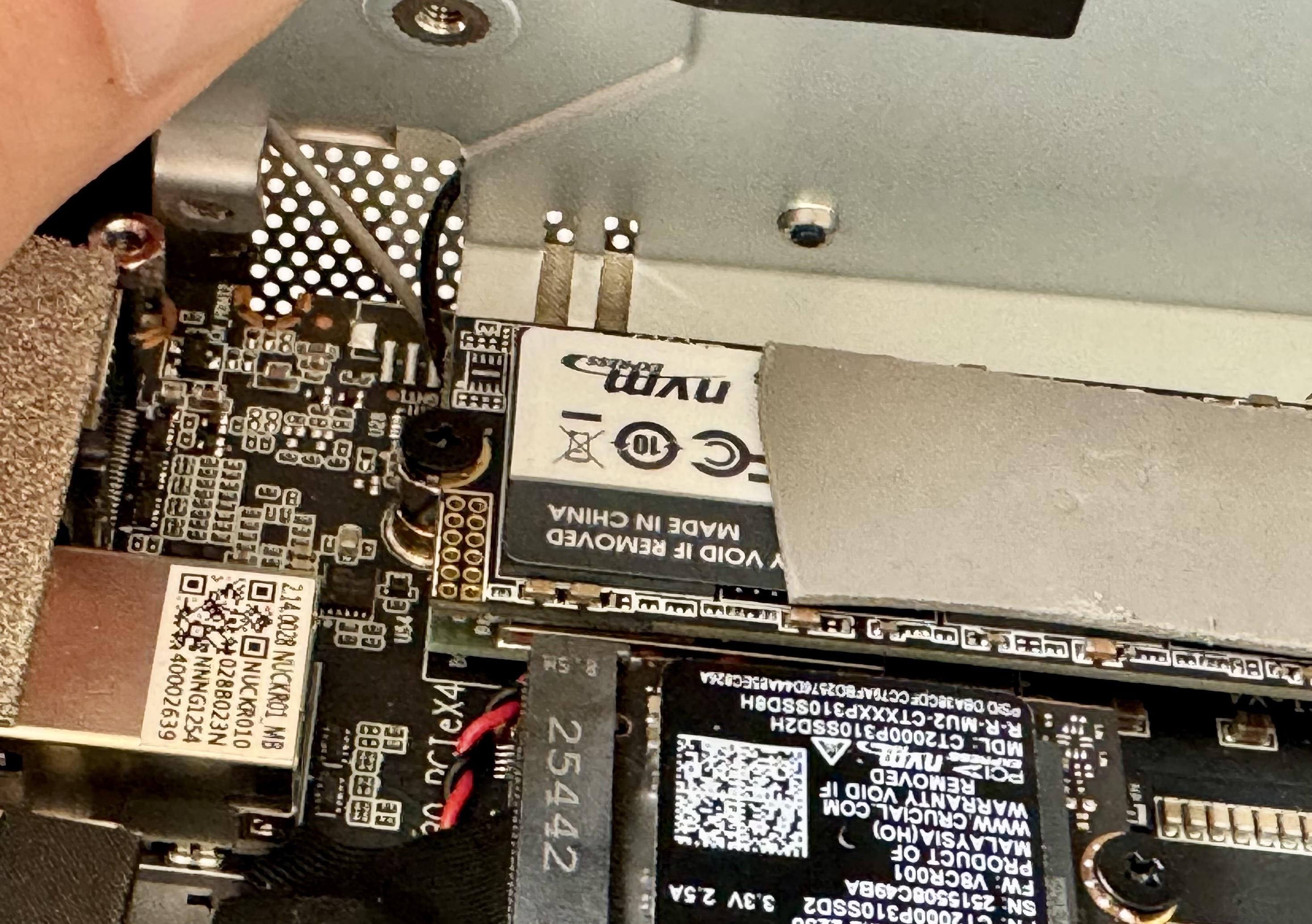
After reassembly, Wi-Fi and Bluetooth came back immediately. No driver updates or BIOS changes needed. It was a purely physical problem, and a frustratingly easy one to cause without realising. The clear retention flap is there for a reason, and it is worth making sure it is fully seated before you close everything up.
 Carpe Diem Systems Ltd.