Wi-Fi and Bluetooth dead after opening the Geekom A9 Max? Check the antenna leads

After installing the second SSD (covered in Part 1), my Bluetooth mouse stopped working entirely and Wi-Fi was alternating between no connection and a single bar. I spent an hour working through BIOS updates and Windows patches before a single forum post pointed me to the real cause: the antenna leads on the Geekom A9 Max can detach when the heatsink plate is removed or carelessly repositioned. Source: TechPowerUp Geekom A9 Max review.

If your symptoms match, stop chasing drivers and BIOS updates. Open the unit and check the leads first.

Step 1: Recognise the symptoms

Bluetooth completely dead. Wi-Fi dropping between no signal and one bar. These symptoms appeared immediately after reassembling the unit following the SSD upgrade. If this matches your situation and you have recently had the unit open, disconnected antenna leads are almost certainly the cause.

Step 2: Open the unit again

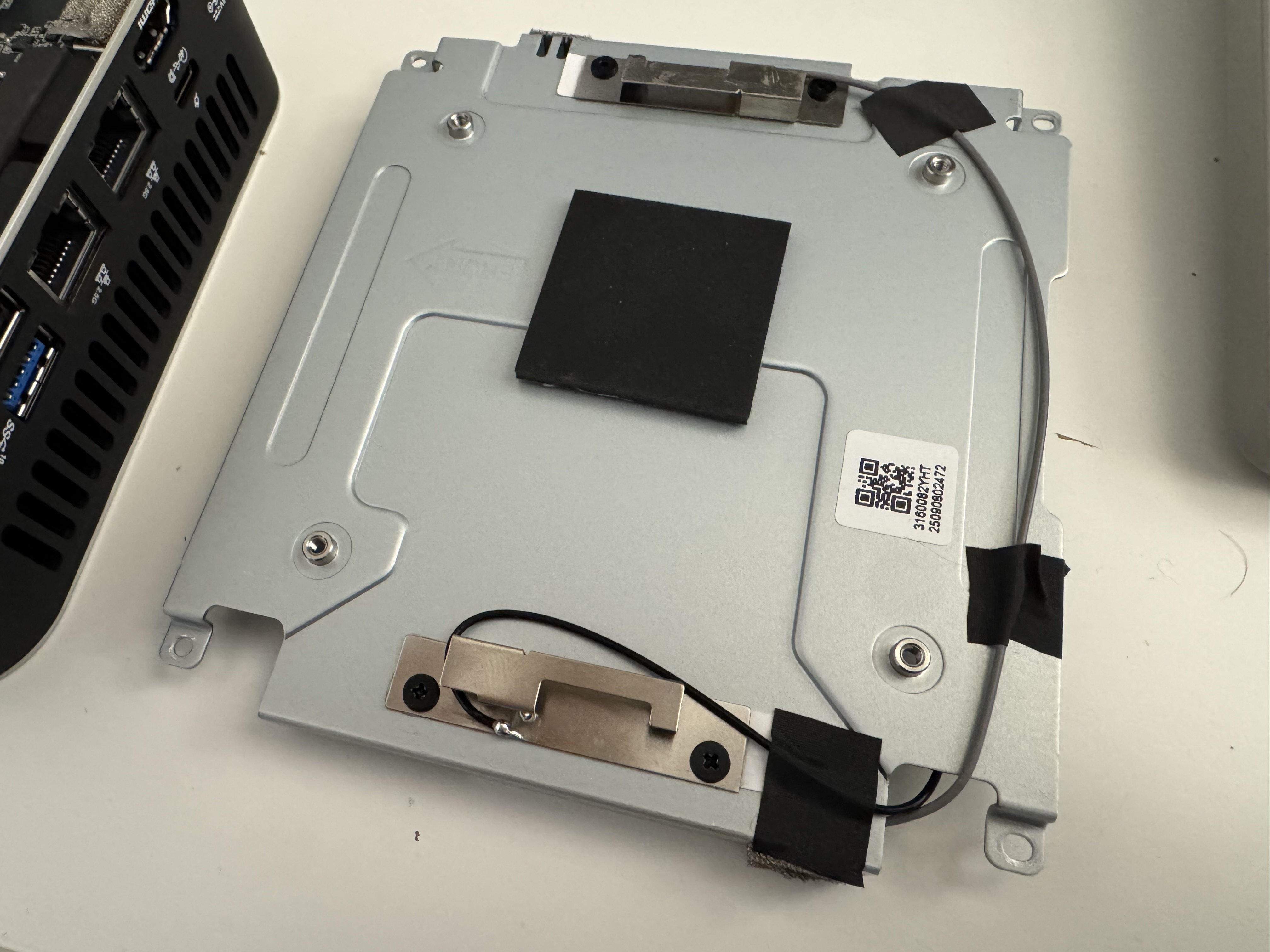
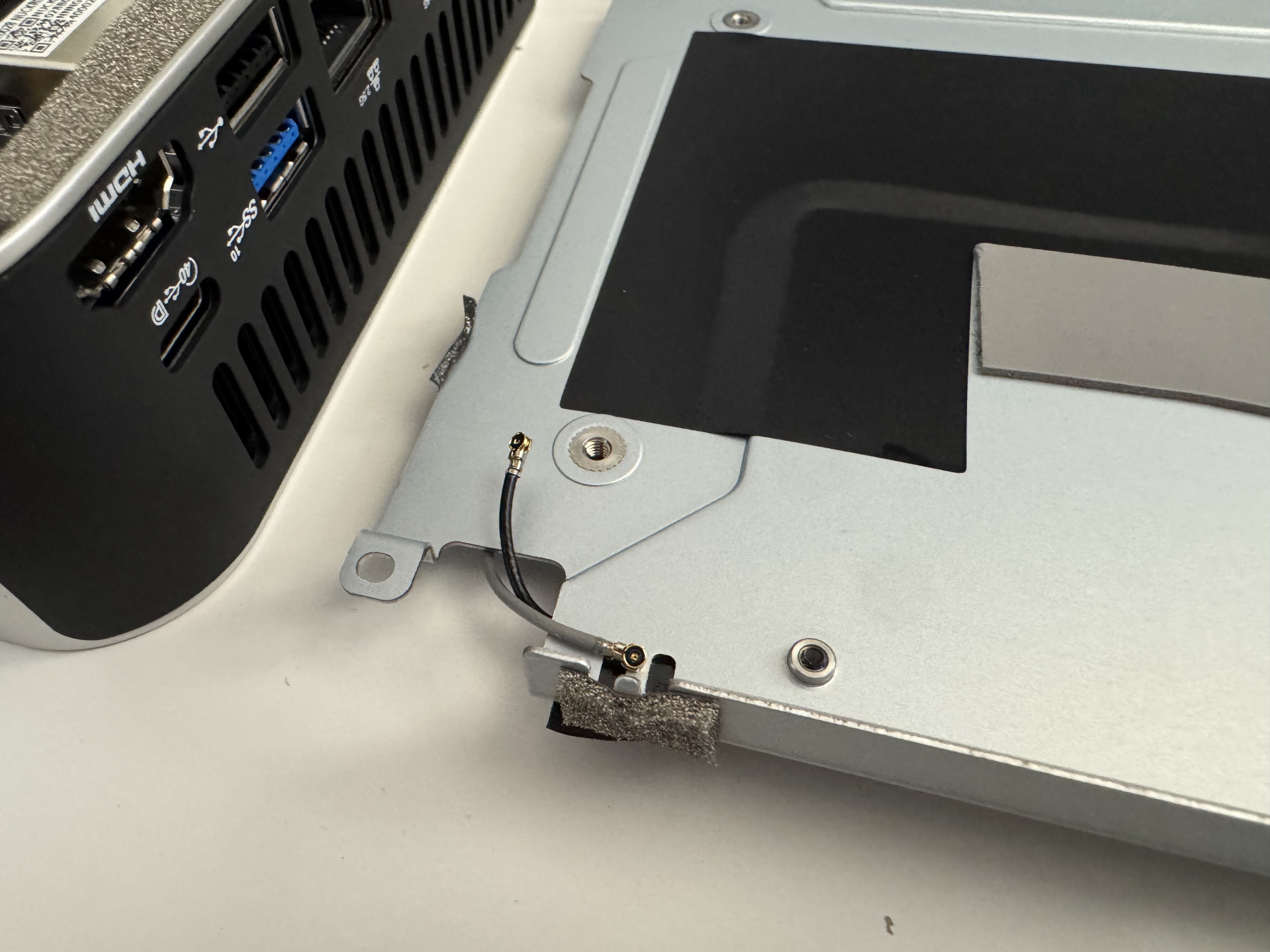
Follow the same disassembly steps as Part 1: remove the rubber feet, unscrew the four chassis screws, and gently lift away the heat sink. In my case it kept moving, since the antenna wires were disconnected!
Step 3: Remove the primary SSD

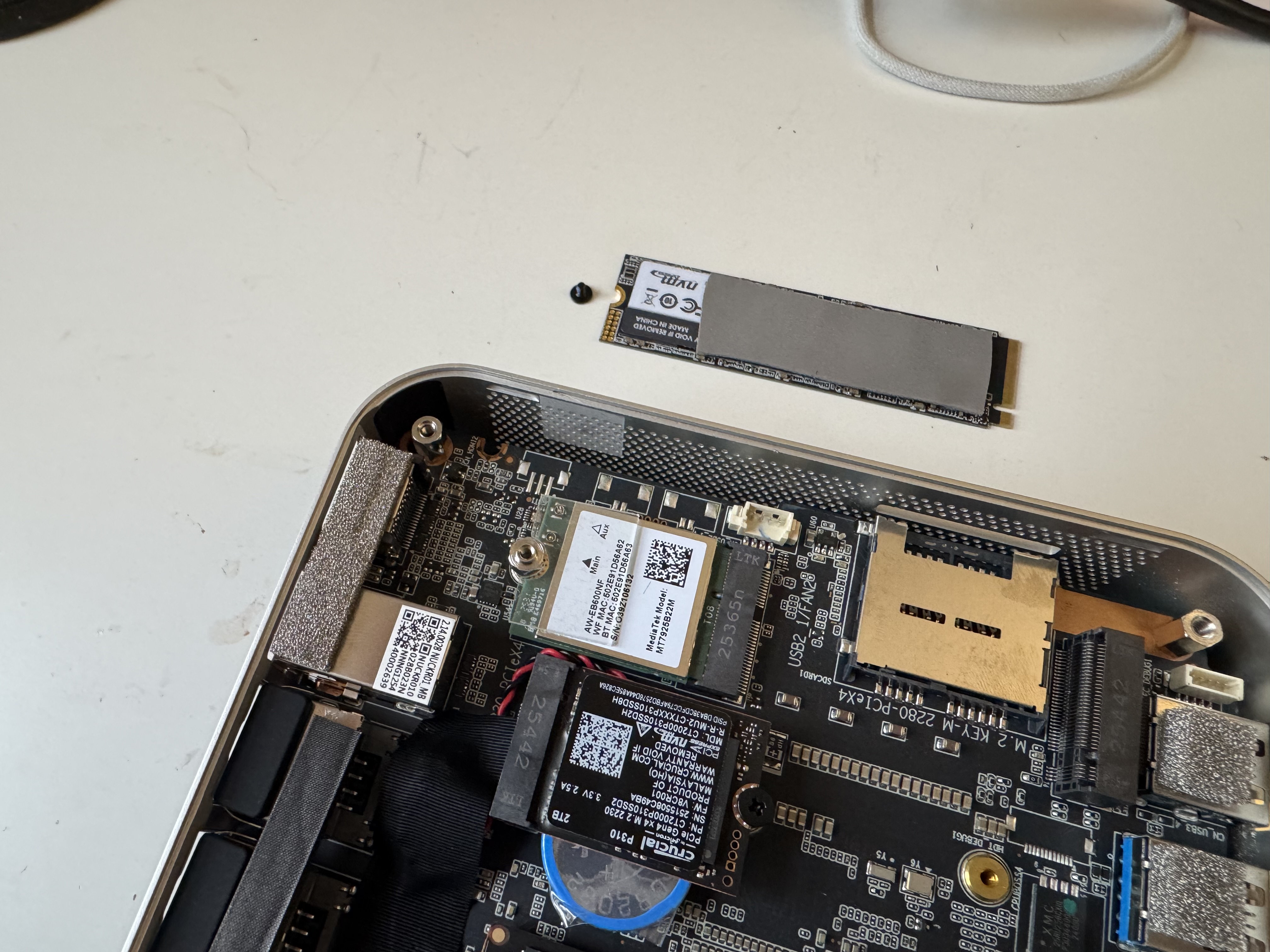
The Wi-Fi board sits underneath the primary M.2 2280 SSD. Unscrew the retaining screw, lift the drive out at an angle, and set it aside safely.
Step 4: Lift the clear retention flap

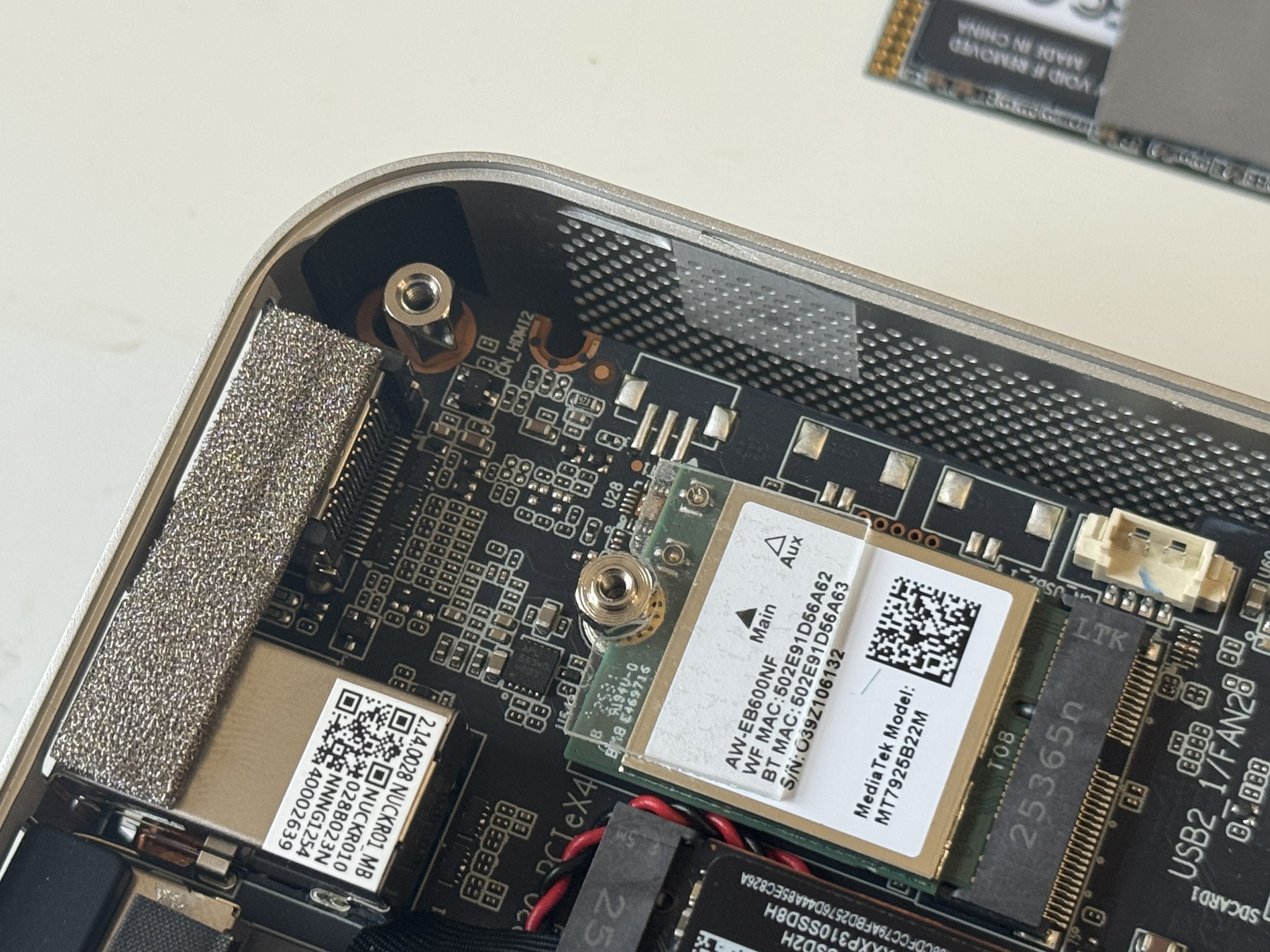
With the SSD removed, you will see a small clear plastic flap designed to hold the antenna leads against the Wi-Fi board. Lift it carefully to expose the leads and their connection points.
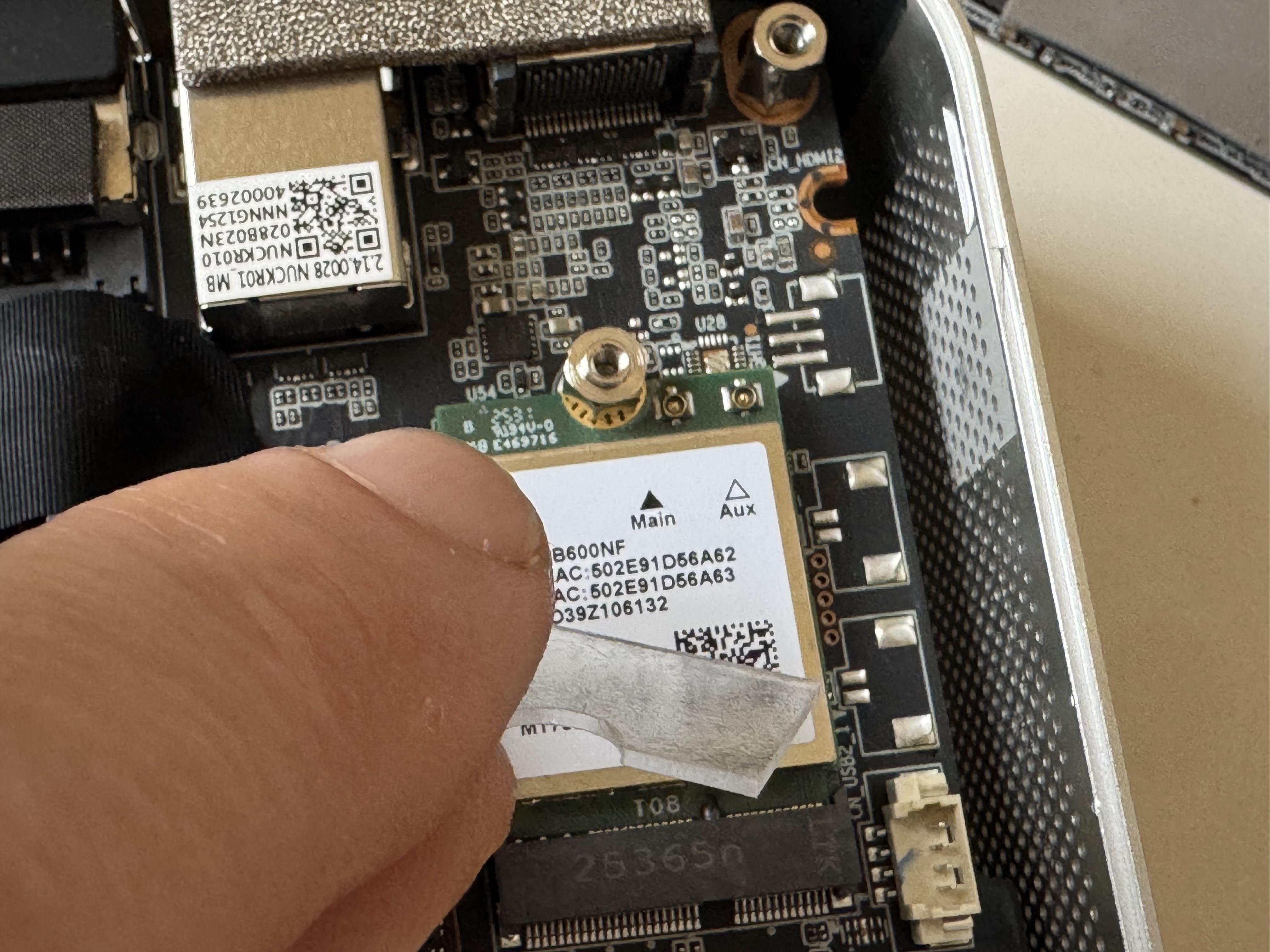
Step 5: Reconnect the antenna leads

There are two leads: one black and one grey. Each has a small circular connector with a tiny hole on one side that allows it to snap onto a post on the Wi-Fi board. Press each one down firmly until you feel and hear it click into place.

  • Black lead connects to the Main terminal
  • Grey lead connects to the Aux terminal

Do not force them. If positioned correctly over the post, they click on with light pressure.
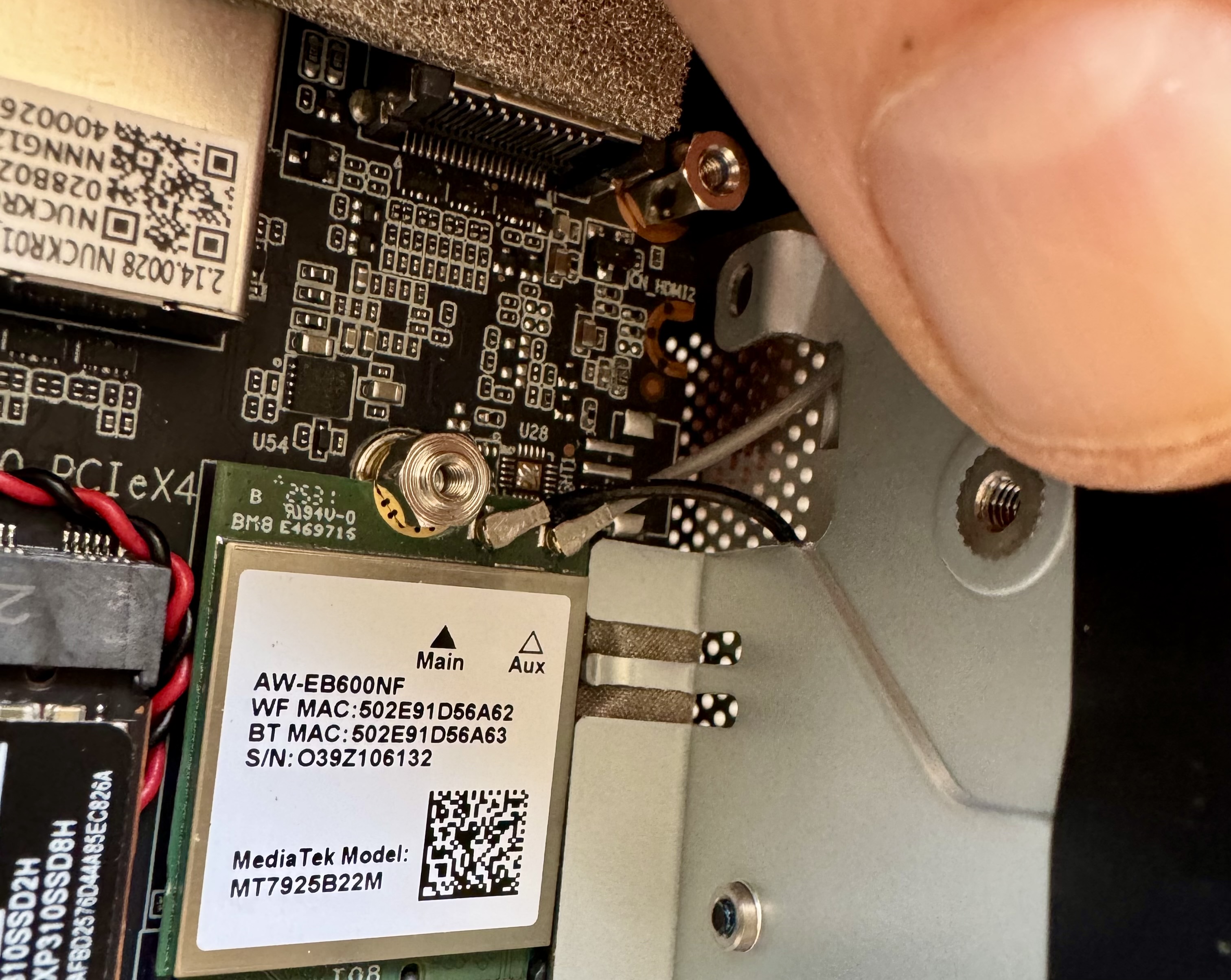
Step 6: Secure the flap and reassemble

Press the clear retention flap back down firmly over both leads. Then reassemble in reverse order: replace the primary SSD and secure its retaining screw, reattach the heatsink, fit the base panel, screw it down, and press the rubber feet back into their slots.
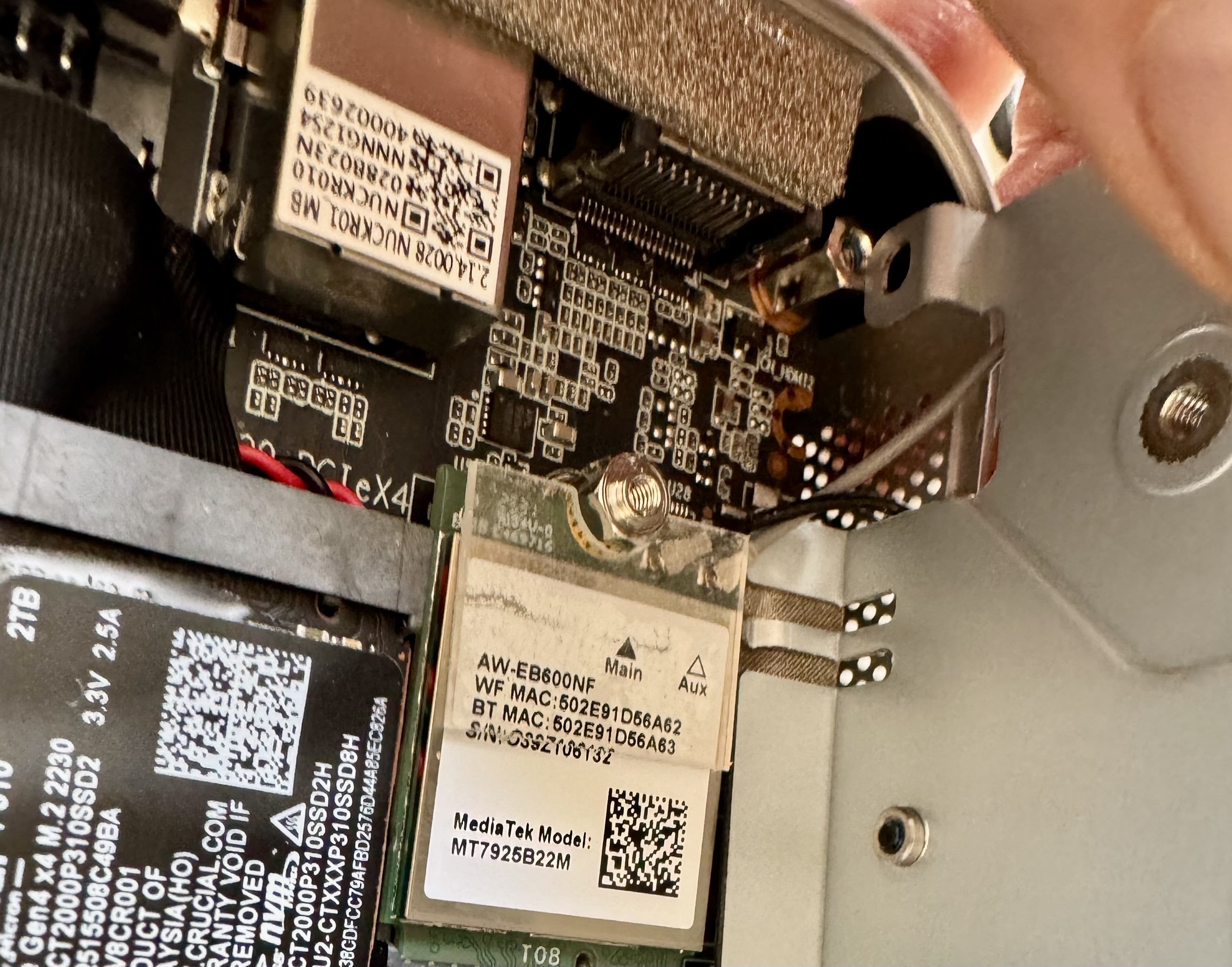
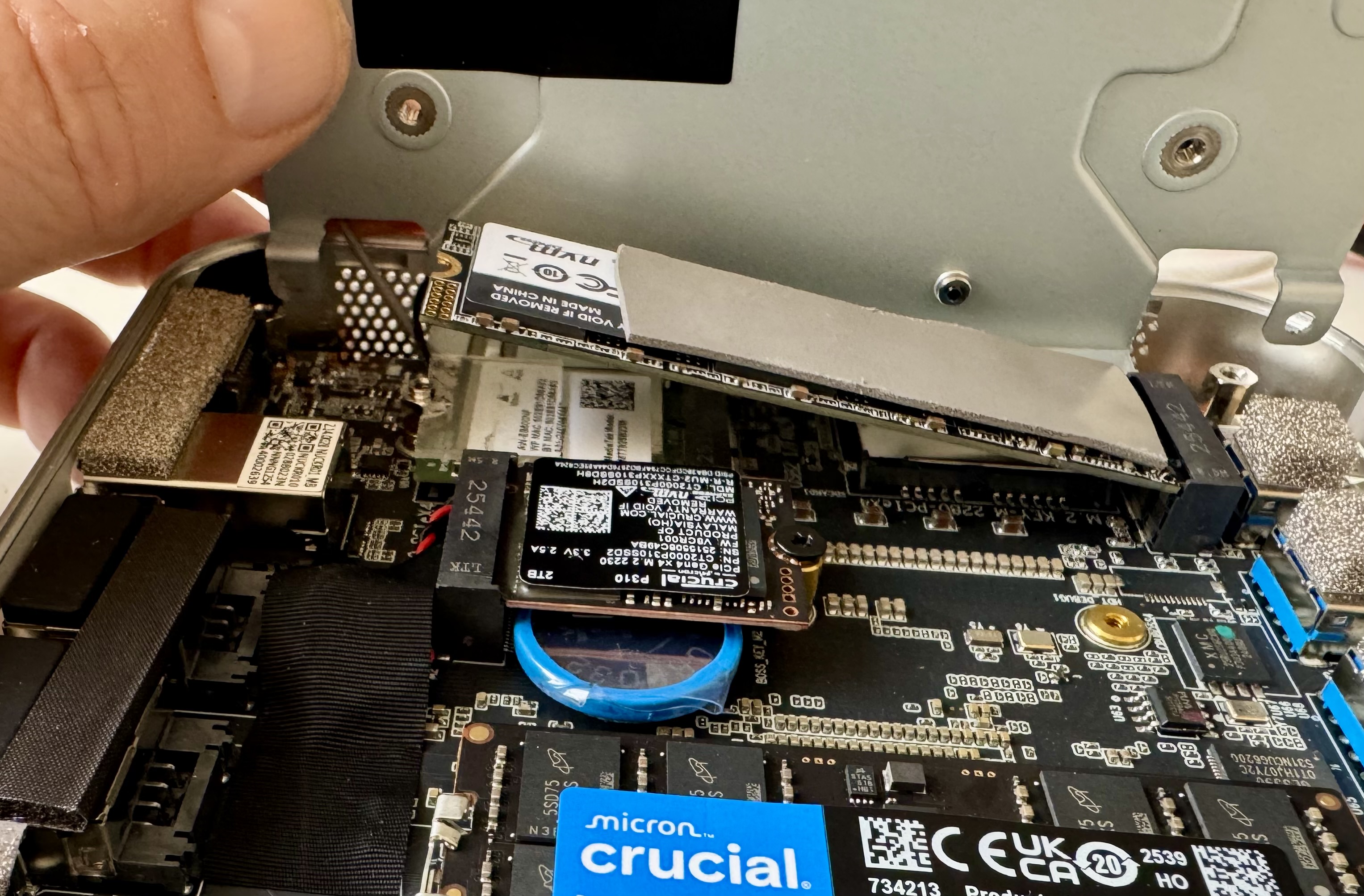
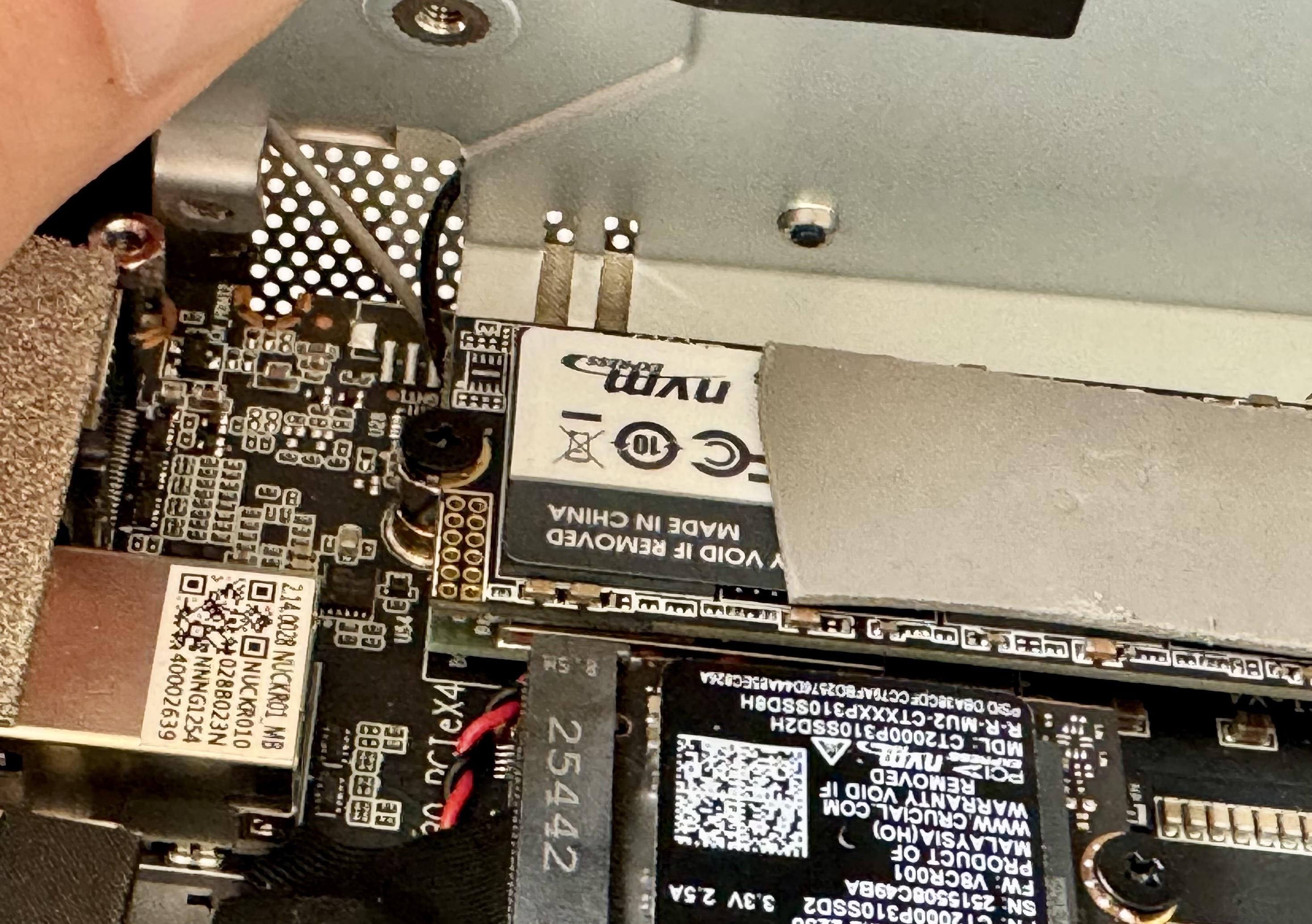
After reassembly, Wi-Fi and Bluetooth came back immediately. No driver updates or BIOS changes needed. It was a purely physical problem, and a frustratingly easy one to cause without realising. The clear retention flap is there for a reason, and it is worth making sure it is fully seated before you close everything up.
How to add a second SSD to the Geekom A9 Max

The Geekom A9 Max ships with a single NVMe drive – mine came with 1TB from Amazon (current listings show 2TB, so this may vary by batch). Either way, there’s a vacant M.2 2230 slot. I added a Crucial P310 2TB M.2 2230 NVMe PCIe Gen 4.

Primary slotM.2 2280 (PCIe 4.0)
Secondary slotM.2 2230 (PCIe 4.0)
Max capacity per slot4TB
SSD used in this guideCrucial P310 2TB M.2 2230 NVMe PCIe Gen 4

The secondary slot requires a 2230 form factor drive – 22mm wide and 30mm long. A standard 2280 will not fit. Double-check the size printed on the drive before ordering.

What you’ll need

  • Crucial P310 2TB M.2 2230 NVMe PCIe Gen 4 – confirmed working in the Geekom A9 Max
  • Phillips #0 screwdriver
  • Plastic pry tool (to lift rubber feet without damage)
  • Anti-static wrist strap (recommended)

Step-by-step installation

Step 1: Shut down and disconnect everything

Fully power off – not sleep or hibernate. Unplug the power cable, then hold the power button for five seconds to drain residual charge. Disconnect all peripherals.

Step 2: Remove the rubber feet and unscrew the base

Flip the unit upside down. Use a plastic pry tool to lift each of the four rubber feet – they hide the chassis screws. Remove all four screws, then lift the base panel away.

Step 3: Remove the heatsink and access the board

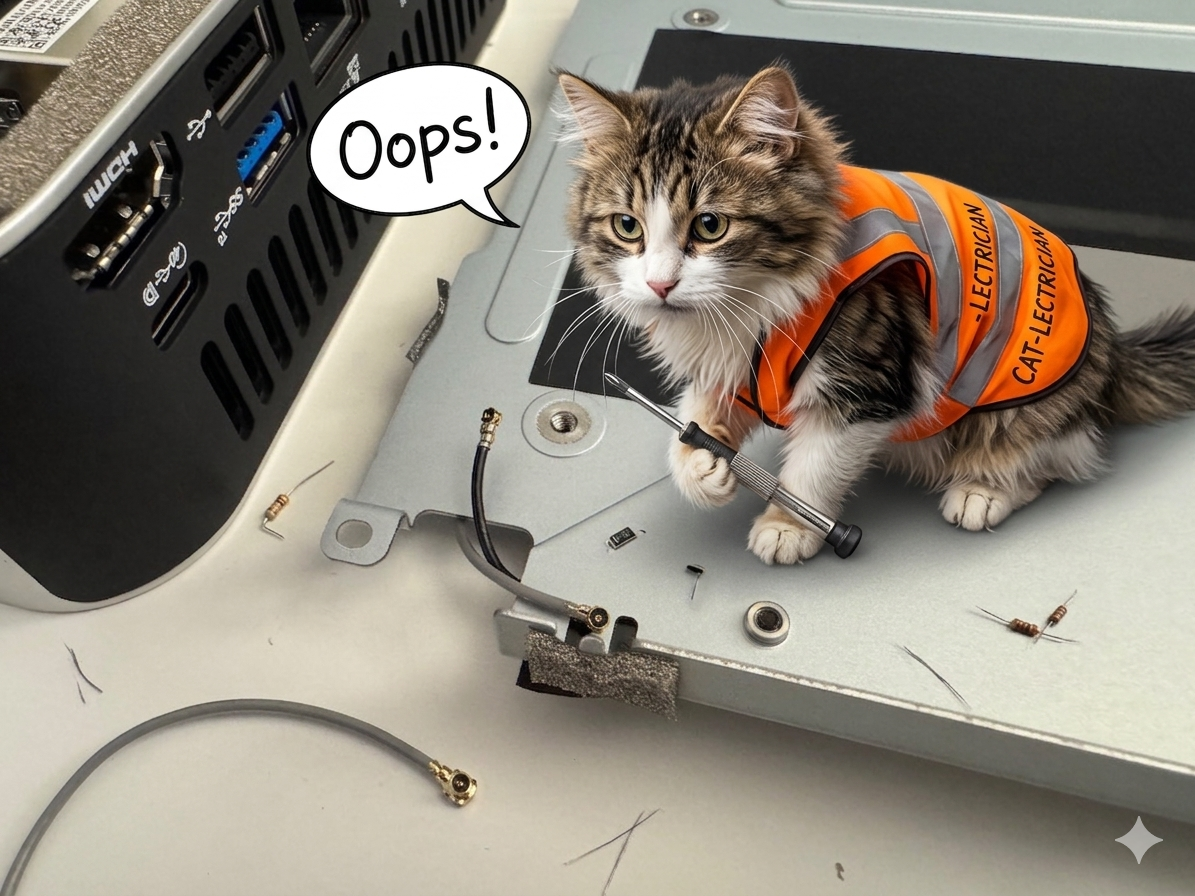
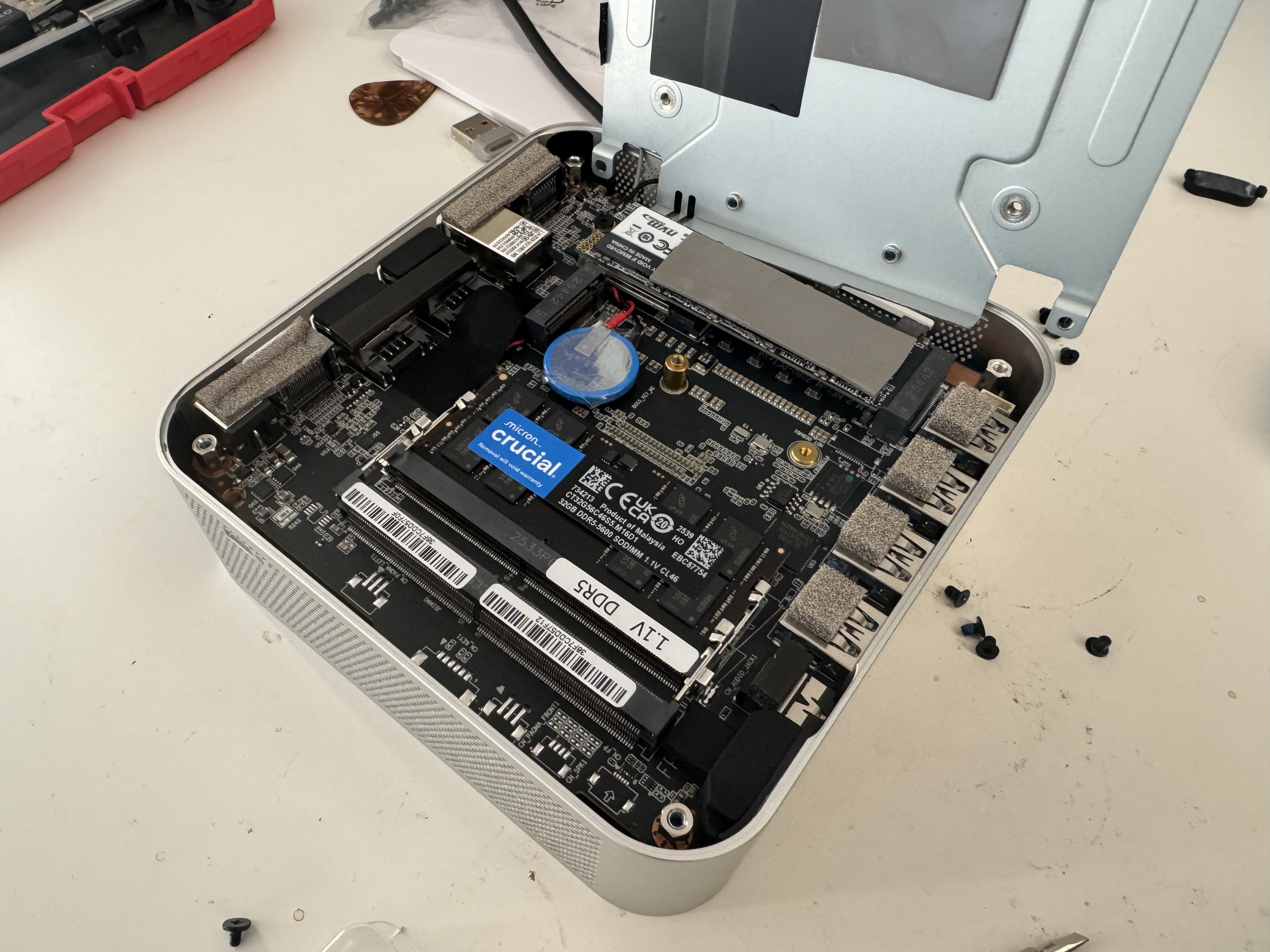
Unlike most mini PCs, the A9 Max has a large metal heatsink beneath the base panel that you must also remove before reaching the motherboard. Unscrew its four retaining screws. The Wi-Fi antenna cables are attached to this plate. I dislodged these cables by mistake; the next post will have pictures showing how I reconnected them. Once clear, you’ll see the motherboard with both M.2 slots exposed.

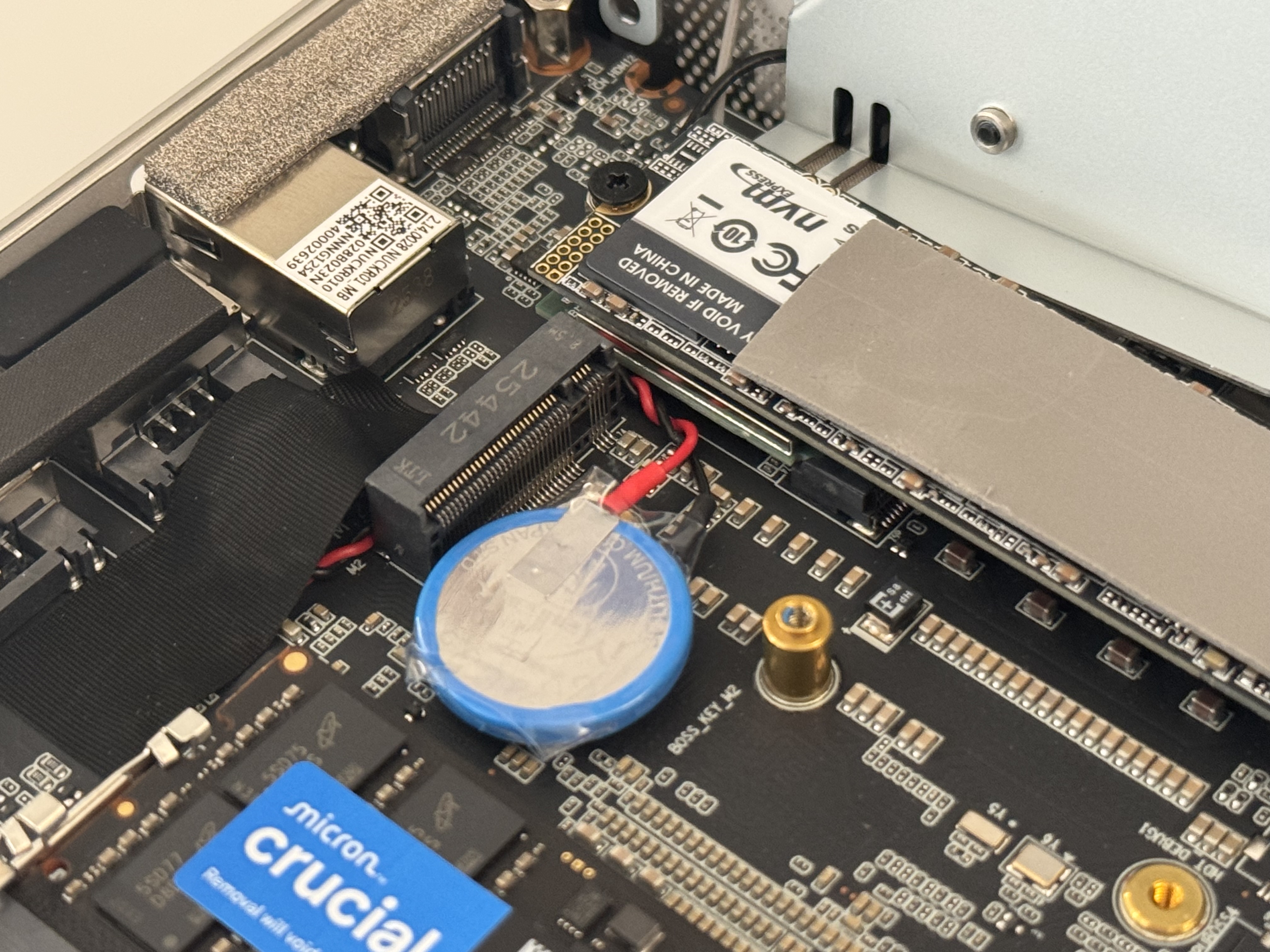
The board exposed after removing the base and heatsink. The primary 2280 slot (occupied) and the vacant 2230 slot are both visible.

Step 4: Locate the M.2 2230 slot

Look near the top of the board. You’ll see the gold standoff screw post labelled BOSS_KEY_M2 and the short vacant connector. The primary 2280 drive (with its “VOID IF REMOVED” sticker) sits just behind it in the larger slot.

The vacant 2230 slot with the gold standoff post clearly visible. Don’t confuse it with the 2542-labelled connector for the primary drive.

Step 5: Insert the SSD at a 45° angle

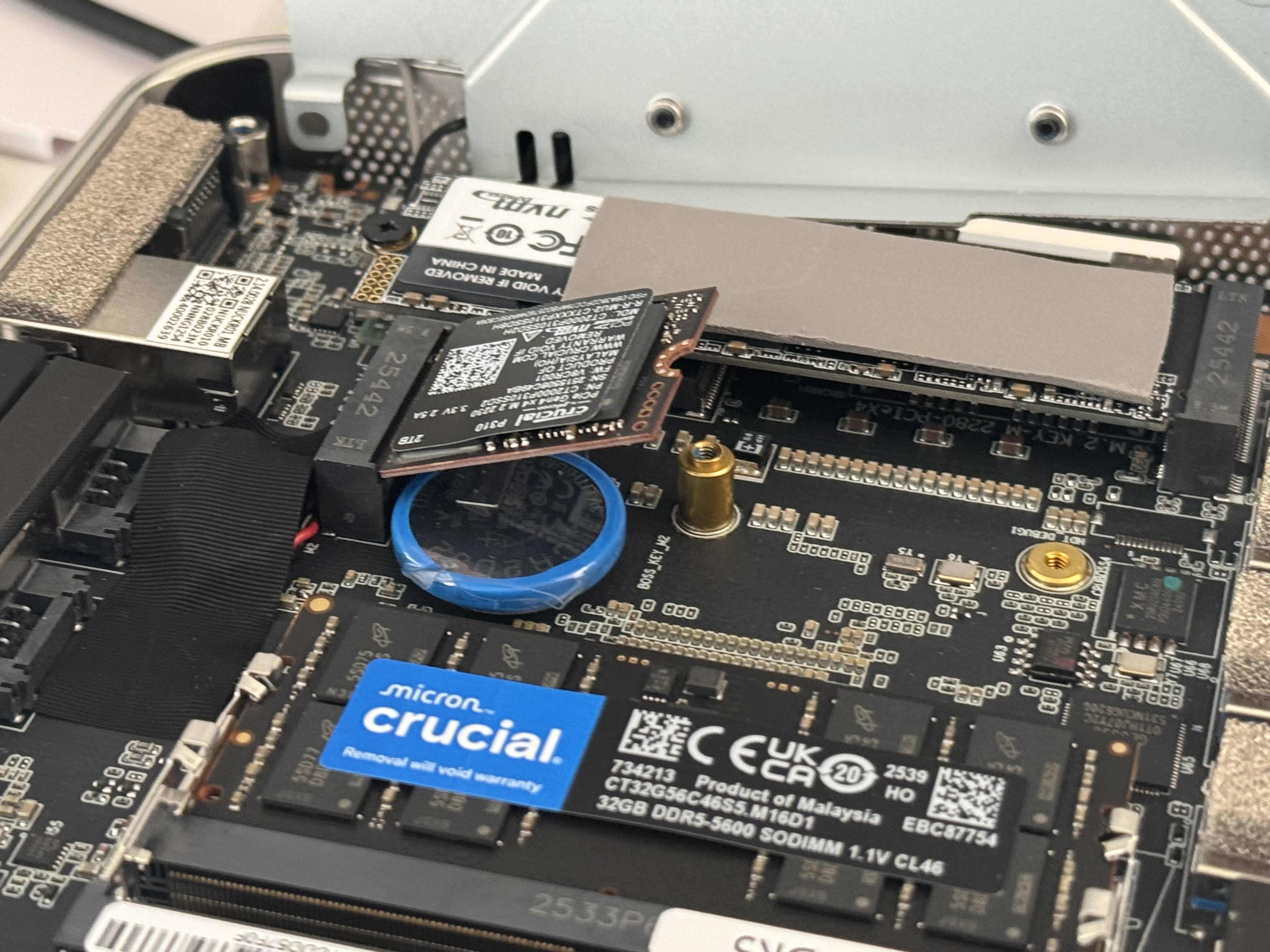
Hold the Crucial P310 at roughly 45° and slide the keyed connector end into the 2230 slot, ensuring the notch aligns. The drive is very short – it will only go in one way.

The Crucial P310 2TB seated at ~45° before being pressed flat.

Step 6: Press flat and secure with the retaining screw

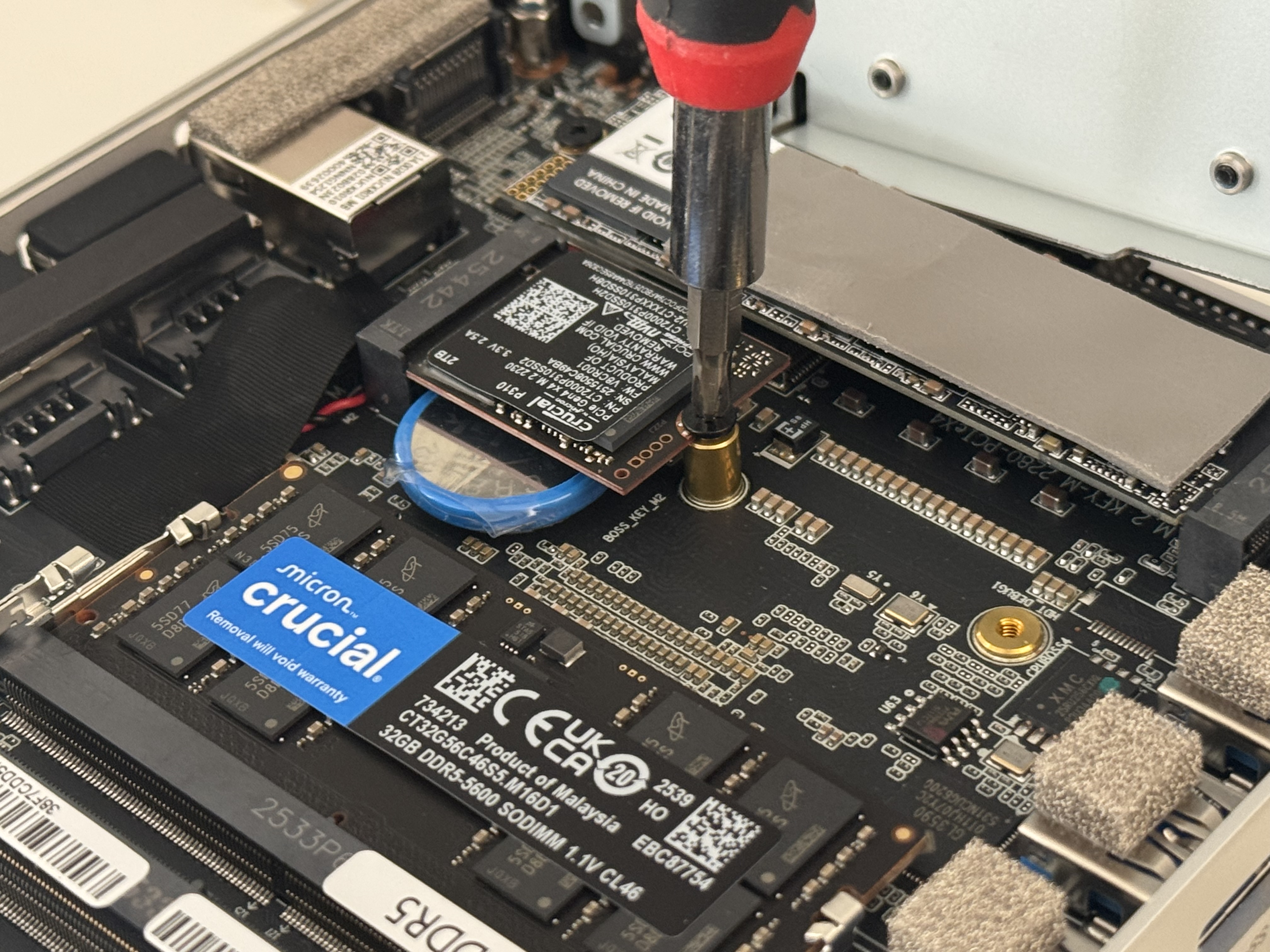
Gently press the drive flat against the board so it lies parallel. Use the small Phillips screw into the gold standoff post to secure the far end. Finger-snug plus a quarter turn is enough – don’t overtighten.

Driving the retaining screw into the standoff. The Crucial P310 is now lying flat and locked in.

Step 7: Reassemble

Reattach the heatsink, replace the base panel, screw it down, and press the rubber feet firmly back into their slots.

Tip! If you detached the antenna cables, don’t skip reconnecting them before reassembly – your Wi-Fi and Bluetooth won’t work. Part 2 of this series covers reattachment in detail.

Setting up the new drive in Windows

See also: https://learn.microsoft.com/en-us/windows-server/storage/disk-management/initialize-new-disks

The drive won’t appear in File Explorer until you initialise and format it.

  1. Open Disk Management – right-click the Start button and select Disk Management. Your new drive appears as “Unknown” with unallocated space.
  2. Initialise the disk – right-click it and choose Initialise Disk. Select GPT for any modern UEFI system.
  3. Create a new volume – right-click the unallocated space, choose New Simple Volume, assign a drive letter, and format as NTFS. Done.

Tip: If the drive doesn’t appear at all, check the BIOS to confirm both M.2 slots are enabled and set to PCIe/NVMe mode. Updating AMD chipset drivers can also help.